Configuring a Rate Exception
Navigation: Setup/Configuration> Item Setup> Edit Item (button)> Quality Settings> Rate Exception (button)
Within an item's configuration, a rate exception can be set to monitor and regulate rater scoring speed on an item. This feature allows administrators to set a minimum and/or maximum rating speed that will be enforced by either only providing a warning message or also making a rater inactive. Multiple rate exceptions can be configured on the same item that will trigger independently.
Rate Exception Setup
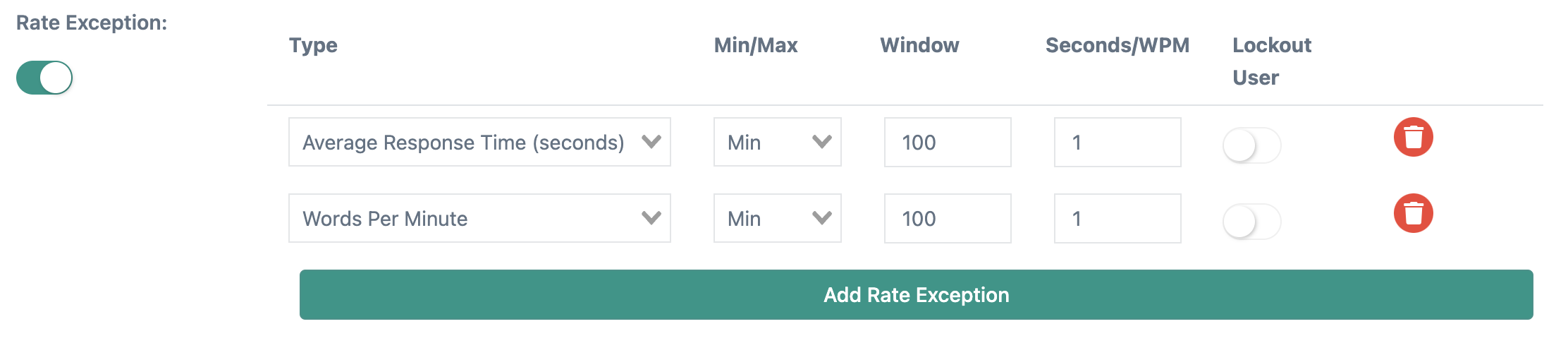
Rate exceptions must be enabled in Item Setup under Quality Settings and the item saved for the exception(s) to be active. There are two two types of rate exceptions, Average Response Time and Words Per Minute. For each type, a minimum or maximum must be selected.
The minimum will trigger when the rating speed falls below the threshold while the maximum will trigger when the rating speed exceeds the threshold.
The window is the number of responses the rate exception will be calculated over. The window is created by the most the recent responses a rater scores and is iterative as the rater continues to score. For example, if the window is set to 100, the rate exception won't be checked until the rater scores 100 responses. After that, the rate exception will be checked after each subsequent response, using the most recent responses- #2- #101, then #3 -#102, then #4- 103, and so on.
The Seconds/WPM is the key configuration element for this feature as it sets the rating speed at which the rate exception will be triggered. The value should be a whole number and will refer to seconds if the type is Average Response Time and words per minute if the type is Words Per Minute.
The Lockout User toggle will determine the behavior of the rate exception when it's triggered. If toggled off, the rater will receive a Rate Exception Warning when they surpass the rate exception threshold, and a warning will also be shown on the Supervisor Dashboard. When toggled on, a warning will still be generated, but the rater will also be inactive and unable to continue scoring until a supervisor makes them active again.
Average Response Time
The Average Response Time setting type is calculated by the number of seconds it takes a user to score a response. This is calculated by the amount of time a response is locked to a rater, also known as think time (a response is locked to a rater when they are delivered the response in the Scoring queue). The value in the seconds box will be the threshold each rater's average seconds per response (over the window) will be checked against. When using this setting, input the minimum amount of seconds per response to regulate raters going too fast or the maximum to discourage raters from going too slow.
Words Per Minute
The Words per Minute feature should only be used with text-based responses. This is because a rater's average scoring speed is calculated using the words per response, found in Auditing under the "Words" column. This rate exception type will calculate an average words per minute by summing the total number of words in the responses within the window, dividing it by the sum of the rater's think time for all the responses scored in the window, and then multiplying that value by 60, for the number of seconds in a minute. In an equation, it would look like this: (sum.words/sum.seconds)*60. For example, if a rater scores 4 responses that have a total of 1,200 words and their combined think time for all four responses is 160 seconds, their words per minute would be 450 or (1,200/160)*60.
When setting the value for wpm, use a minimum to regulate slow scoring and a maximum for rating that is too fast.
Rate Exception Warning
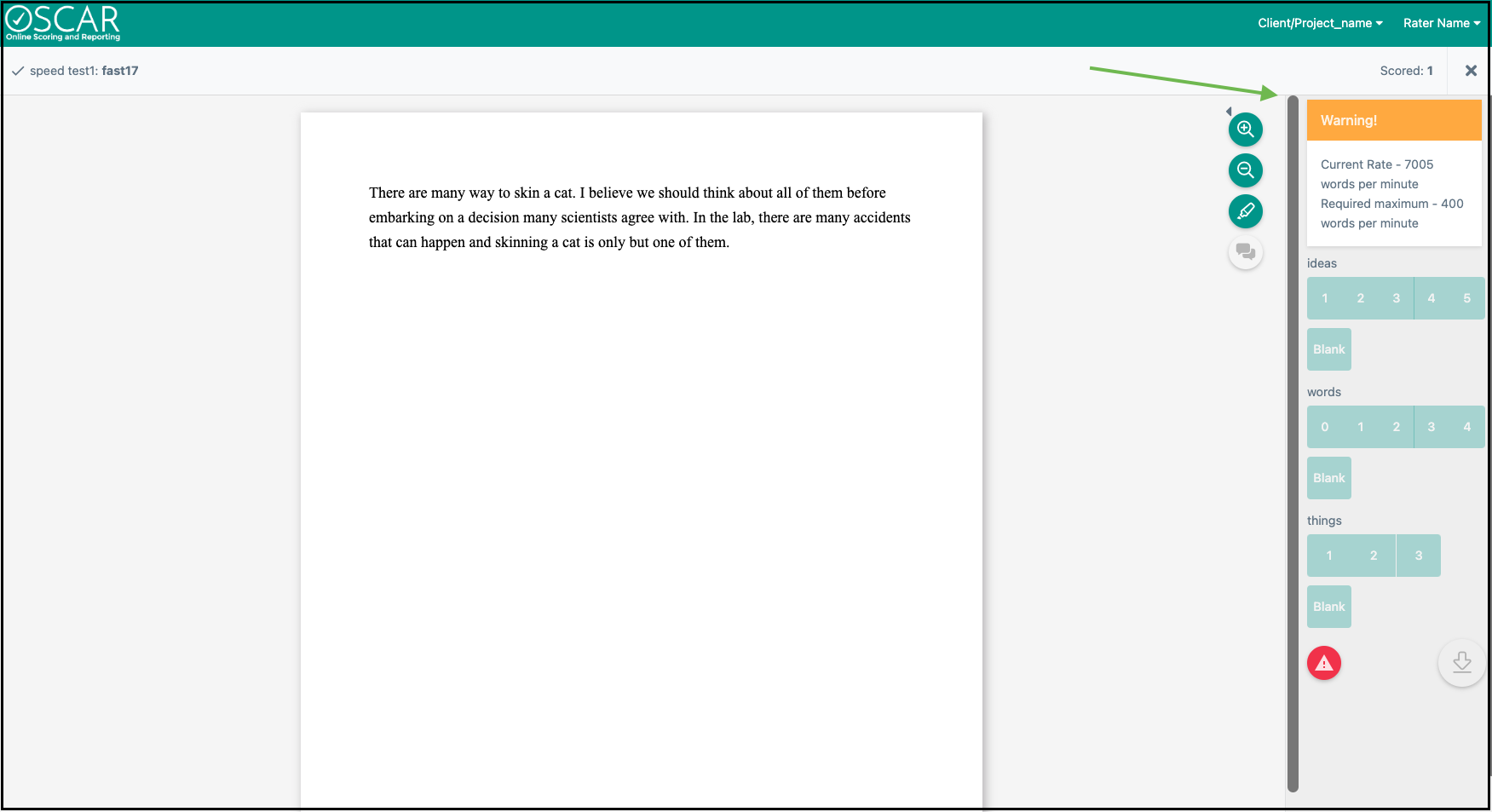
Whenever a rate exception is triggered by the rater exceeding or falling below the threshold set, they will receive a warning in the Scoring viewer. The warning will show their current rating speed and the required minimum or maximum. A warning will be displayed for every rate exception triggered.
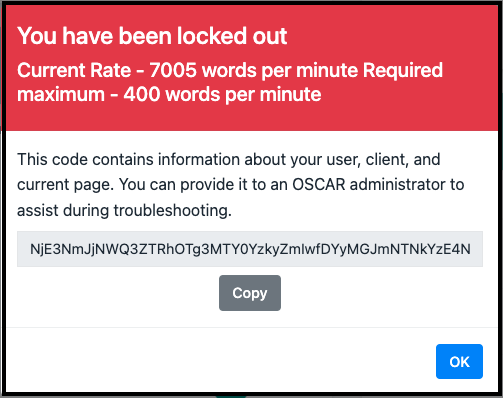
If the rater is locked out because of the rate exception, they will receive a notification that includes their rating speed and the required threshold.
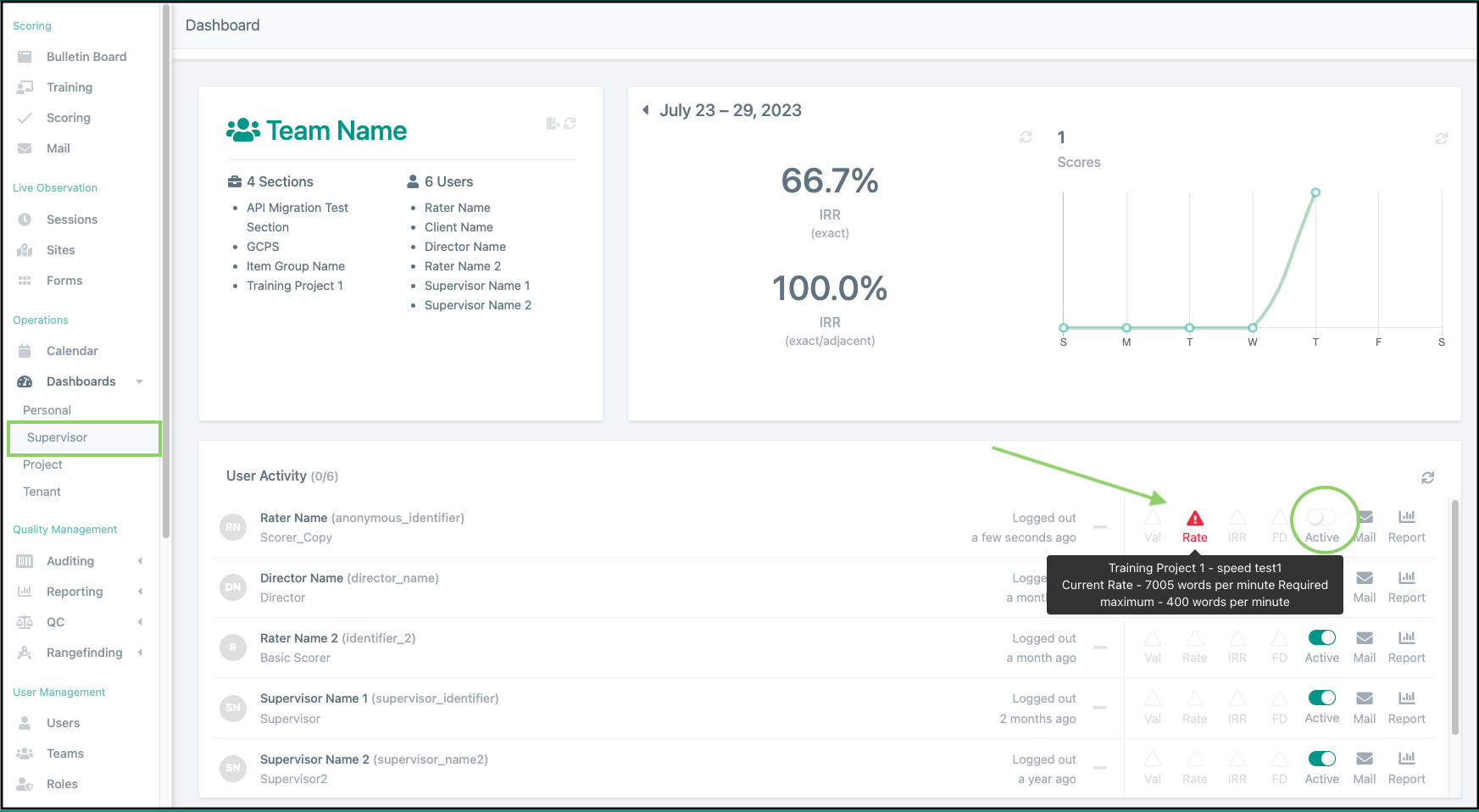
There will also be a warning flag displayed in the Supervisor Dashboard. When hovering over the warning icon, the rater's speed and exception that was triggered can be viewed. If the rate exception is set to lockout, the rater can also be made active again using the active toggle on this page.
When a rater is locked out because of failing a rate exception threshold, note that their window will be reset. This will ensure a rater will not be continually locked out when returning to scoring after receiving feedback on their rating speed.
After setting a rate exception, it can be changed at any time and take effect immediately. Changing the setting will not change any user scoring rate data and will only change how the rate exception threshold behaves. This means if a rate exception has been configured to be too fast or too slow, it can be updated on the fly without interrupting a scoring project.