Validity Settings
Navigation: Item Setup> Quality Settings> Validity (toggle)
Every item in OSCAR can have its own unique Validity settings. Validity is a feature that will automatically deliver pre-scored responses to raters while they are scoring as a quality control measure. These responses will only be delivered while raters score through the Scoring queue. There are a number of options that allow Validity responses to be blind, randomized, reviewable, or contain feedback that are all determined on the Validity Set. This article will only cover Item Setup Validity options. To utilize Validity on an item, Validity sets must first be created and active in QC Setup (how to create a Validity set).
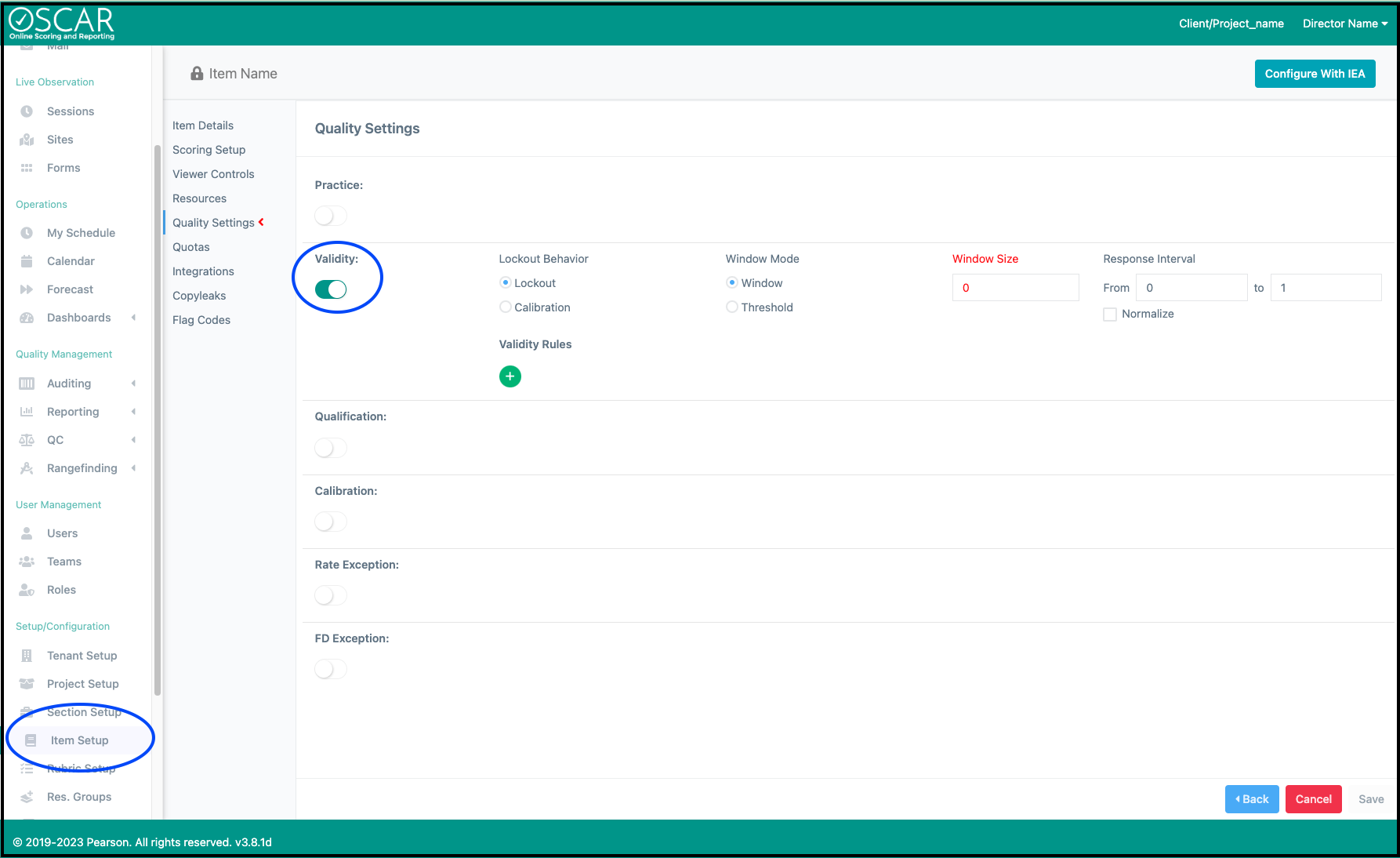
Validity Options
Once the Validity setting is toggled on, the Validity settings can be modified and saved. The Lockout Behavior will determine if the rater is made inactive upon failing the Validity Rules or delivered a Calibration Set. If the rater fails the Calibration Set, the default behavior is that the rater will be locked out. The Window mode setting determines whether the Validity Rules are calculated over a rolling window of responses, set by the Window Size, or if a Threshold of incorrect responses determines when a rater can fail the Validity Rules. The Response Interval determines both how often Validity responses are delivered and when during scoring a Validity response is delivered. Note, if the Lockout Behavior is set to Lockout, the rater's Window or Threshold will be reset after they are locked out. This ensures that a rater will not continually be locked out for failing a validity response.
Response Interval
Use the response interval to set the frequency raters score Validity responses. The interval represents a count of responses the rater will score, starting at zero. The "From" value is the earliest response the rater could be delivered a Validity response and the "to" value is the latest possible validity delivery. When the Validity response is actually delivered is randomized within the interval range, limiting the raters' ability to predict when they are scoring Validity responses (note, if the set is not using the "Blind delivery" option, raters will receive a notification each time they score a Validity response).
To illustrate, if the Response Interval range is 1 to 4, the effective Validity rate would be 20% (1/5). Recall that the count begins at zero, so a rater would have to score one response (0) before the Validity interval begins. Then, they would receive a Validity response at some point from their second scored response (1) to their fifth scored response (4), determined randomly each time. Once they receive a Validity response, the interval is reset, and their next scored response becomes count 0.
Since the Validity response is delivered randomly within the interval range, over a small sample size or within a very large interval it is possible to have a more varied validity rate. Use the Normalize option to create a constant Validity rate, regardless of the sample or interval size. This option will require that a rater completes the remaining number of scores within the interval range before the next Validity response is delivered.
Window Mode
Use the Window Size option to determine how many Validity responses will be considered when applying the Validity Rules. Though Validity responses are delivered from a Validity Set, the Window Size can be any value and will always use the most recent Validity responses scored, regardless of what set they are contained in. The Validity Window is iterative as the rater scores. For example, if the Window Size is 5, a rater will need to score 5 Validity responses before the Validity Rules are checked. Once checked, the Lockout Behavior will determine what happens if the rater fails the Validity Rules. If the rater passes, then as soon as they score their 6th Validity response, the rules will be checked again. This time, however, the Validity responses checked will be their 2nd to 6th Validity responses. A window of 5 but one that iterates every time a new Validity response is scored after the 5th (the window size).
Validity Rules
While using Window Mode, any number of Validity Rules can be added to the item. Each Validity rule created will be checked independently of the other rules, in the order the rules are created. Once the Validity Rules are checked, determined by the Window Size, the Lockout Behavior will be triggered the first time a rule is failed. If all rules are passed, there is no action taken.
Use the Add Rule button to create a new Validity Rule. First determine the type of rule being created, and then modify the pass threshold values. The pass percentage set will require the rater to meet or exceed that value to be considered passing. 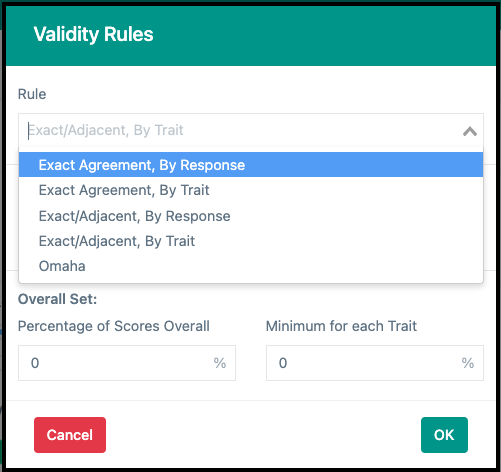
To view a rater's current Validity status on an item, visit either the QC Reporting page or the User Portfolio page. From QC Reporting, choosing the Section and Item and the "All sets" filter option will display each user's current status. From the User Portfolio page (below), choosing Validity then the desired Section and Item will display the rater's current status, the item's Validity rules, as well as their performance on each Validity response. 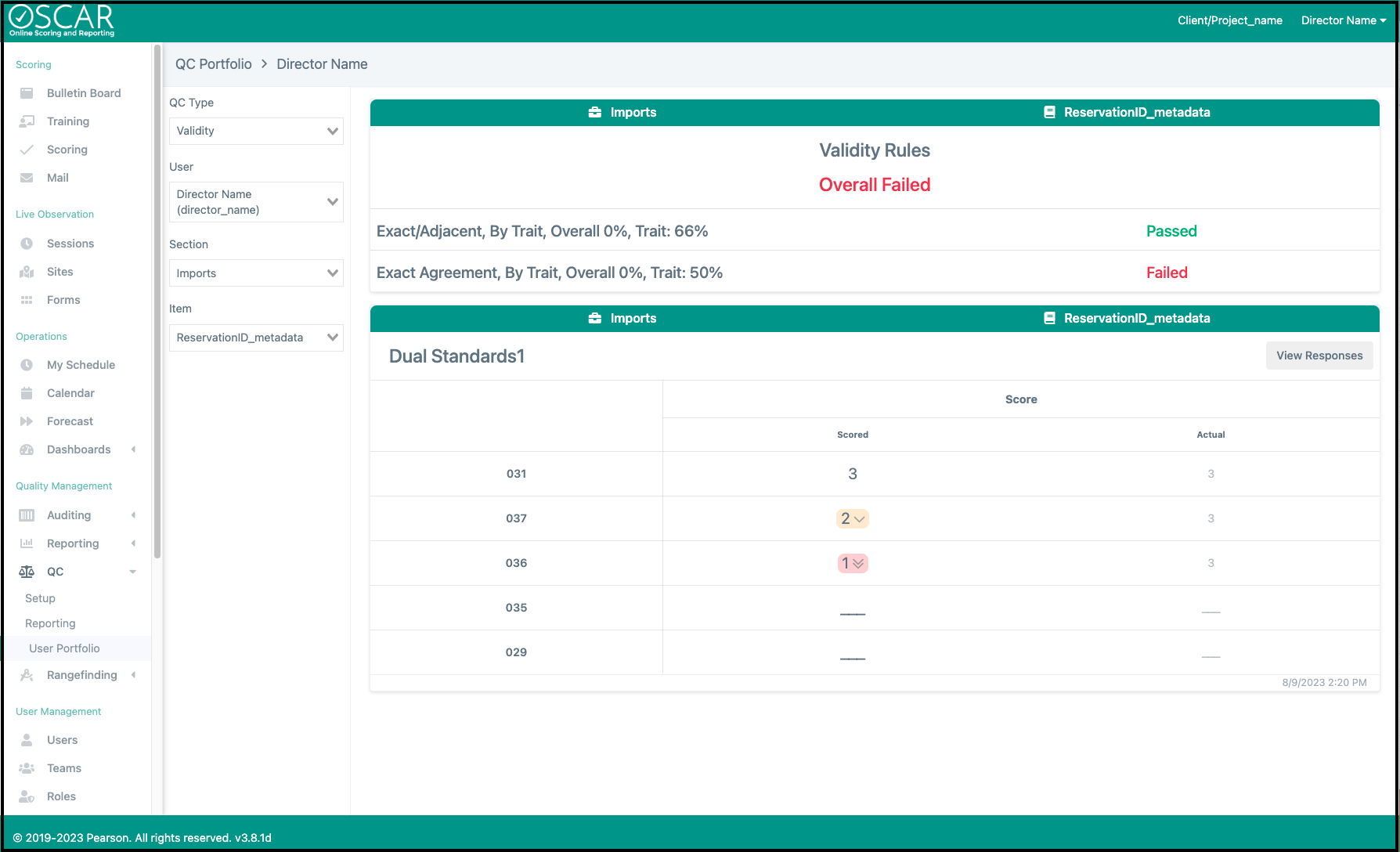
Threshold Mode
Use Threshold Mode if Validity should be checked on each response (instead of over a window) and each rater should be allowed a maximum number of incorrect Validity responses. This feature is more binary in that Validity is either right or wrong each time the rater scores a Validity response, and each Validity miss is recorded as a tally of incorrect. Only one Validity rule can be set in Threshold mode and only rules that are checked by the response (not by trait). Use the # Incorrect option to set the threshold at which the Lockout Behavior will trigger. For example, if the # Incorrect is set to 2, when the rater fails two Validity responses the Lockout Behavior will trigger.