
...
After you confirm that you have met minimum system requirements, use the instructions below to set up iPads in your testing environment.
You can Install and set up TestNav on an iPad for secure testing using one of the following methods:
| Expand | ||
|---|---|---|
| ||
To enable single app mode on iPad using Apple Configurator, first back up the device to retain any data or applications. Then, turn on Supervised mode for your organization to wipe the device. You may restore the iPad after testing by placing the iPad in Supervised mode to put data and apps back on the device.
|
| Expand | ||
|---|---|---|
| ||
Administrators can use Mobile Device Manager (MDM) to push a profile to devices to wirelessly turn on/off single app mode. Profile Manager is Apple's MDM solution for Mac OS X. You can select the TestNav app from the Lock to App menu and push the profile to supervised devices. |
| Expand | ||
|---|---|---|
| ||
You can also use Autonomous Single App Mode (ASAM) mode (Lock to App) to set up iPad for secure testing. ASAM is the recommended solution for LEAs to manage single app mode because it reduces administrator workload. The ASAM feature requires BOTH a Supervised iPad (which you enable only from Apple Configurator) and an MDM (either Profile Manager or third-party). With ASAM, TestNav turns Guided Access on and off, as each testing scenario requires. Administrators do not need to push profiles to devices to turn on/off single app mode, but grant TestNav the ability to turn on Single App mode on-demand. |
| Expand | ||
|---|---|---|
| ||
Using TestNav with Guided Access (iOS 8)
Exiting TestNav/Closing Guided Access mode
|
Related Info
| Expand | ||
|---|---|---|
| ||
When using iPads on iOS 8 for secure testing, turn off Auto-Correction and Predictive text:
|
...
the sections below.
| Excerpt | |||||||
|---|---|---|---|---|---|---|---|
Install TestNav
|
Find and Set Up Response File Backups
When a student responds to a test question, TestNav sends the response to the Pearson server. If the network experiences a connectivity issue, or the student encounters an error, TestNav saves the response to a saved response file (SRF). For configuration details, see: Set Up and Find Saved Response Files (SRF).
Run App Check
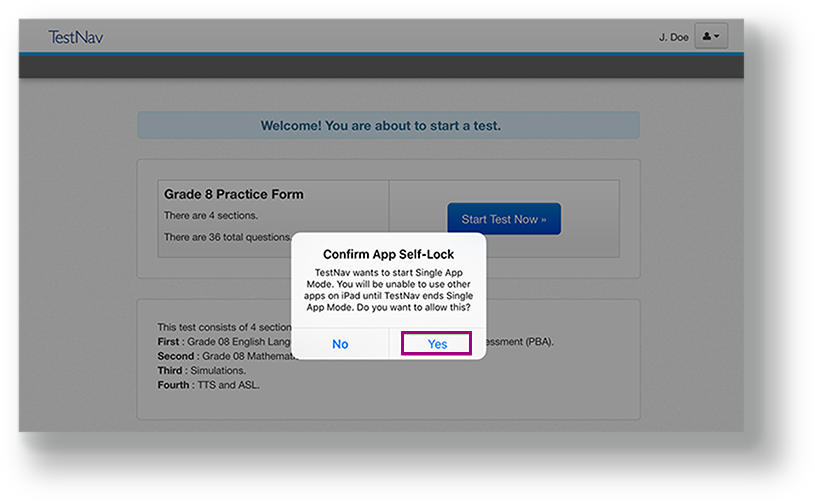
It is essential to run the App Check on each student device before testing. For details, see App Check. If presented with a Confirm App Self Lock message, click or tap Yes to continue.
Sign In to TestNav
When you are ready to start a test:
Start the TestNav app.
The first time TestNav is launched, it displays the Enable Microphone Permission message, as well as the TestNav would like to Access the Camera message.Tap or click OK to grant permission for both.
If the student taps or clicks Don't Allow, TestNav displays another prompt, shown below:
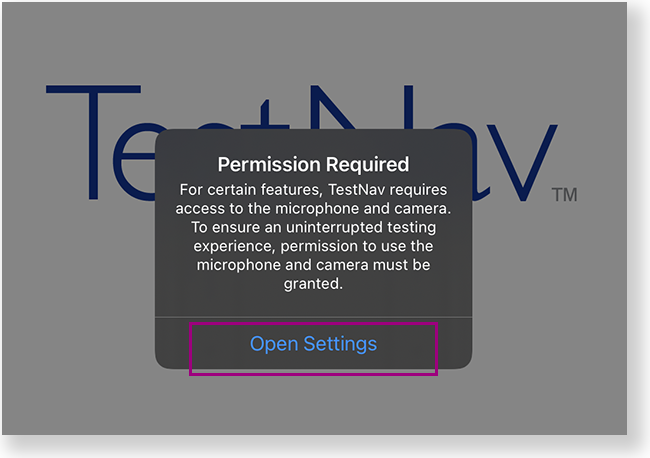
Tap or click Open Settings to enable the microphone and camera.
Tap or click the appropriate icon for your test on the home page. If your test was selected before the test session, you see the Sign In page, rather than the home page.
If you need to select a different test, tap or click the user drop-down menu at the upper-right, and Choose a different customer.
Include Page IR:_TN_graphic_chooseCustomer IR:_TN_graphic_chooseCustomer Tap or click the appropriate icon for your test.
Include Page IR:_TN_graphic_installHome IR:_TN_graphic_installHome
Start a test to ensure that you can do so without error.
- If you see a Practice Tests link on the Sign in page, click Practice Tests and start a test.
- If you do not see a Practice Tests link, use an authorization ticket from your student management system and start a test.
- When starting a test that requires kiosk mode, the student should:
- Enter a username and password, and tap or click Sign In.
On the Confirm App Self Lock message, click or tap Yes to continue testing.
| UI Text Box | ||||
|---|---|---|---|---|
| ||||
|
| Include Page | ||||
|---|---|---|---|---|
|
...
Tiny Link: https://support.assessment.pearson.com/x/OAccAQ
...
Find Your SRF and Log Files on iPad
You can view SRF and log files two ways on iPads, via Safari or USB.
| Expand | ||
|---|---|---|
| ||
|
| Expand | ||
|---|---|---|
| ||
|