
...
Install and set up TestNav using the sections below.
| Excerpt | |||||||
|---|---|---|---|---|---|---|---|
Install TestNav
|
...
After you download TestNav and ProctorCache, complete the following:
These ordered steps correspond to sections below or a related setup page. You can click each link to go directly to the corresponding processes.
...
Find and Set Up Response File Backups
...
When a student responds to a test question, TestNav sends the response to the Pearson server. If the network experiences a connectivity issue, or the student encounters an error, TestNav saves the response to a saved response file (SRF). For configuration details, see: Set Up and Find Saved Response Files (SRF).
Run App Check
It is essential to run the App Check on each student device before testing. For details, see App Check. If
...
| Note |
|---|
During BOTH the infrastructure trial and the actual test, note which specific iPad each student uses during each test. The TestNav app saves SRFs to only one designated place on the testing device. If an error occurs, you can locate files only on that specific device. |
...
Install TestNav
When the TestNav app update becomes available,
- Delete any previously established TestNav restrictions from iPads. Search for the Assessments Overview in Apple Education for details.
- Download TestNav for iPads.
| Note |
|---|
Do not connect iPads to computers during testing. |
...
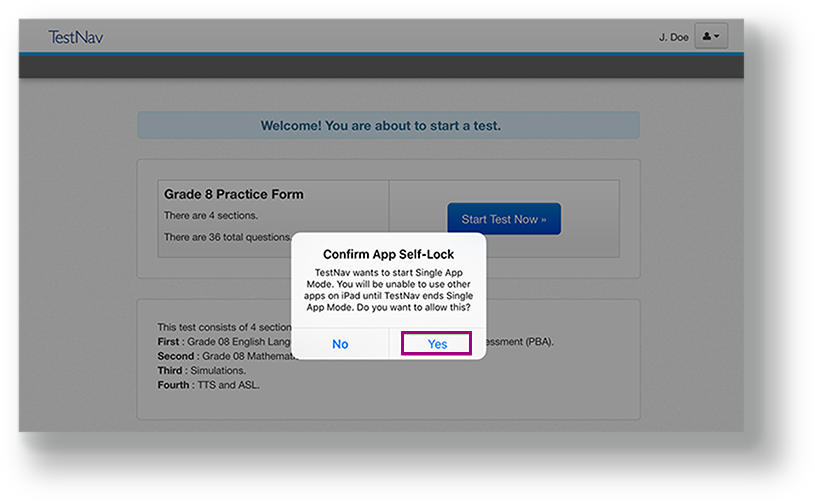
presented with a Confirm App Self Lock message, click or tap Yes
...
to continue.
Sign In to TestNav
When you are ready to start a test:
Start the TestNav app.
The first time TestNav is launched, it displays the Enable Microphone Permission message message, as well as the TestNav would like to Access the Camera message.Tap or click OK to grant microphone permission for both.
If the student taps or clicks Donclicks Don't Allow, TestNav displays another prompt, shown below:
Expand title Click here to view a screenshot... 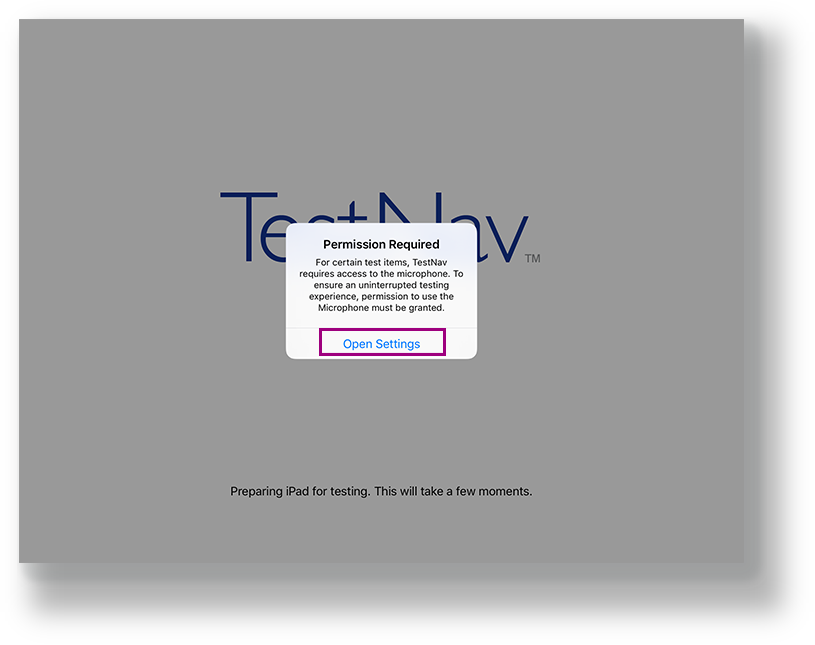
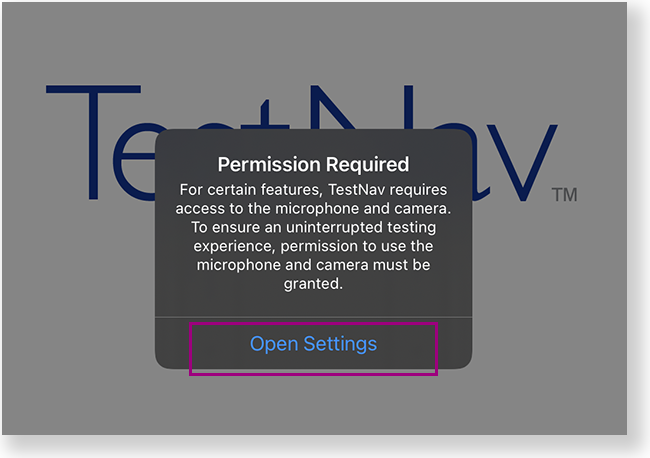
Tap or click Open Settings to enable the microphone and camera.
Tap or click the appropriate icon for your test on the home page. If your test was selected before the test session, you see the Sign In page, rather than the home page.
If you need to select a different test, tap or click the user drop-down menu at the upper-right, and Choose a different customer.
Expand title Click here to view a screenshot..
.Include Page IR:_TN_graphic_chooseCustomer IR:_TN_graphic_chooseCustomer Tap or click the appropriate icon for your test.
Expand title Click here to view a screenshot... Include Page IR:_TN_graphic_installHome IR:_TN_graphic_installHome
Start a test to ensure that you can do so without error.
- If you see a Practice Tests link on the Sign in page, click Practice Tests and start a test.
- If you do not see a Practice Tests link, use an authorization ticket from your student management system and start a test.
- When starting a test that requires kiosk mode, the student should:
- Enter a username and password, and tap or click Sign In.
On the Confirm App Self Lock message, click or tap Yes to continue testing.
Expand title Click here to view a screenshot...
| Warningui-text-box | ||||
|---|---|---|---|---|
| ||||
|
...
| Include Page | ||||
|---|---|---|---|---|
| ||||
| Include Page | IR:_TN_SRFandLogs_Mobile | IR:_TN_SRFandLogs_Mobile |
...
On iPads, the SRF default primary save location is not customizable.
...
- Open Safari and enter the url: testnav://admin.
Note that the first time you access this, a dialog asks if you want to open in TestNav. Tap Open to open TestNav. - Click View Logs or View Student Responses.
- From this screen, you can view and email SRF and log files.
- Click the Home button when finished.
...
- Connect the iPad to the computer using a USB cable.
- Start iTunes, version 9.1 or later.
- Click iPad from the listed devices in the iTunes window.
- Click the Apps tab and then scroll down to the bottom of the page.
- View the list of apps currently installed on the iPad under File Sharing.
- Select the TestNav App. A list of TestNav log files displays under TestNav Documents.
- Select and open the SRF or log file you want to view.
|
...
Tiny Link: https://support.assessment.pearson.com/x/OAccAQ
...
Include Page