-
Created by
 Erica Smith, last updated on Jul 01, 2026
4 minute read
Erica Smith, last updated on Jul 01, 2026
4 minute read
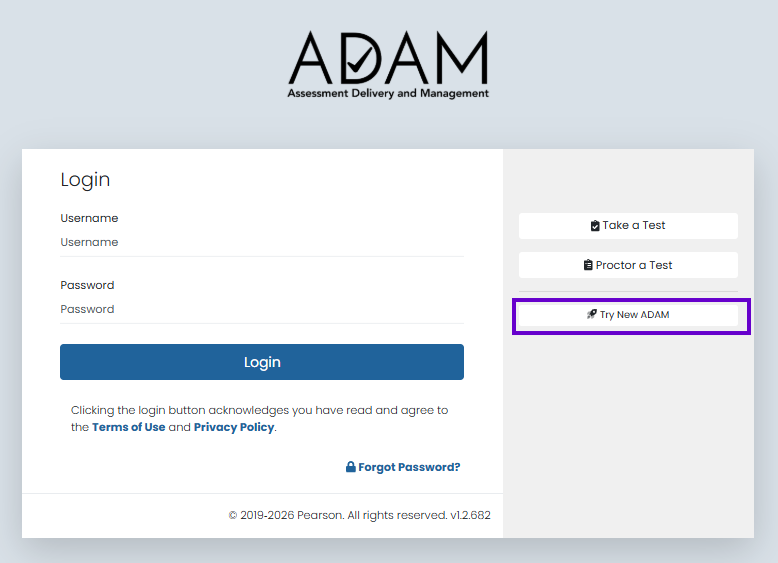
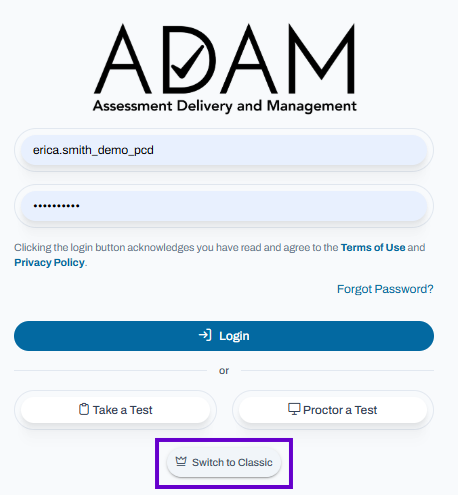
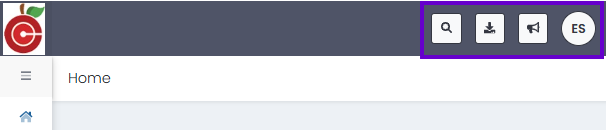
Classic User Interface: Updated User Interface: Use the following links or information on how to Reset Your Password or using Forgot my ADAM Password. The Header Toolbar provides convenient access to global tools and settings available throughout ADAM. From this area, users can search the application, access downloads and notifications, adjust display preferences, and switch between supported languages. Classic User Interface: Updated User Interface: Dark Mode changes the ADAM interface from a light color scheme to a darker color scheme, reducing screen brightness and making content more comfortable to view in low-light environments. To use Dark Mode: Tip: Dark Mode can help reduce eye strain during extended use and may improve visibility in dimly lit environments. The Student Search tool allows users to quickly locate student records within ADAM. Tip: Entering more specific search criteria can help narrow the results and locate students more quickly. The Downloads tool provides access to files, reports, exports, and other downloadable resources available to the user in ADAM. Tip: Use Downloads to quickly access recently generated reports, exported data, and other files made available within ADAM. The My Requests tool allows users to view and track requests they have submitted within ADAM. Tip: Use My Requests to monitor progress and quickly access previously submitted requests without needing to create a new one. The My Profile menu provides access to your personal account information and account-related actions within ADAM. Tip: Use the My Profile menu to verify your account information, adjust available settings, access help resources, and securely end your session when finished. Designed to provide a more modern and streamlined experience, ADAM 2.0 makes it easier to navigate the platform, find key features, and complete tasks efficiently. Improvements include a cleaner layout, enhanced organization of settings and tools, and a more consistent user experience across the application. As new ADAM 2.0 features are released, this support site will be updated with the latest screenshots, documentation, and guidance to help users take full advantage of new functionality as it becomes available. Prior to logging into ADAM, simply click on the 'Try New ADAM' link. To return to the Classic View, you must first log out then click 'Switch to Classic' prior to logging in again.Logging into ADAM
NOTE: Contact your system administrator if you do not have login credentials or experience issues accessing your account.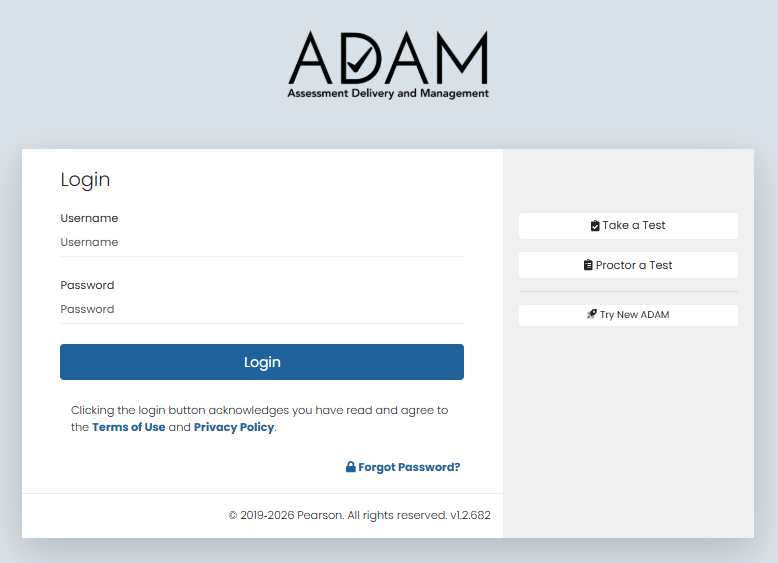
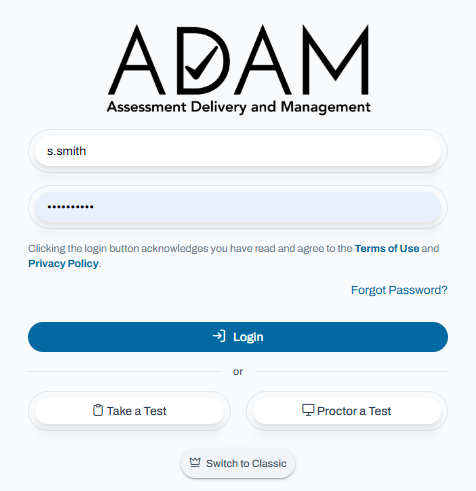
Header Toolbar

Dark Mode (Updated User Interface Only)
Using Student Search
Using Downloads
Using My Requests
My Profile
ADAM 2.0 UPDATES - NEW User Interface
Try It Out!