The Reseat Session is a permissioned action that logs a student out of an active TestNav session and allows the student to sign in again. This feature can be used to resolve certain testing interruptions or session issues without affecting the student's saved responses.
See also: Accessing the Proctor Dashboard
Prerequisites
Before reseating a student:
- The assessment must be configured to allow the Reseat Session action.
- The student must have an active or interrupted test session.
- The student must belong to your proctor group.
- Verify that reseating the student is permitted by your testing policies and procedures.
When to Use Reseat Session
A student may need to be reseated if:
- The student exits or closes the secure testing browser unexpectedly.
- The student's internet connection is interrupted.
- The student's device becomes unresponsive during testing.
- The student experiences navigation or session-related issues that prevent normal testing.
- You need the student to sign in again and reconnect to the assessment.
Reseat One Student
To reseat a student:
1. In the proctor dashboard, find the student you want to reseat.
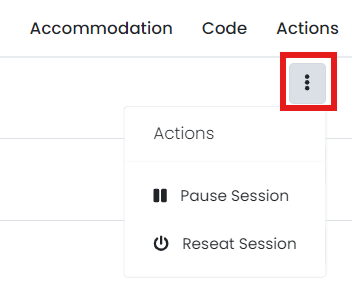
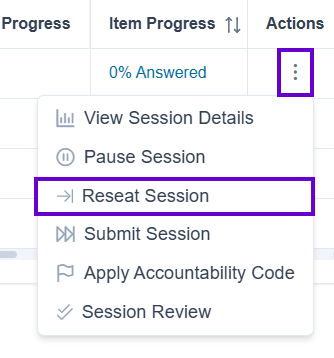
2. In the Actions column, select Reseat.
Classic User Interface:
Updated User Interface:
3. When the confirmation message appears, select Reseat. The student progress will change from to Reseat to indicate that the student has been reseated and may re-enter the test.
4. The student receives a notification that they can log in to the test session again.
Reseat Selected Student Only
You can filter by status or individually select student to reseat. See also: Apply Actions to Selected Students Only
Reseat All Students in a Proctor Group
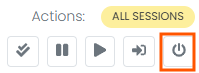
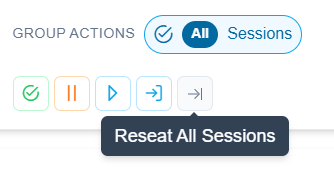
Select the Reseat All Sessions icon.
Classic User Interface:
Updated User Interface:
Important Notes
- Reseating a student does not remove saved responses or test progress.
- Students must sign in again after being reseated.
- The student's testing status on the Proctor Dashboard updates to reflect the new session state.
- If issues persist after reseating, follow your organization's troubleshooting procedures or contact support.