Administrations: Create and Merge Temporary Students
The Create Temporary Student is a permissioned feature that allows authorized users to create a student record when a student is not yet available in ADAM but needs to begin testing immediately. Temporary students can be assigned to a proctor group, scheduled for testing, and, if necessary, assigned accommodations so testing can proceed without delay.
After the student's permanent record is available, authorized users can merge the temporary student record with the permanent student record to ensure testing data is associated with the correct student.
Prerequisites
Before creating a temporary student:
- You must have permission to create temporary students.
- The student must not already exist in ADAM.
- Required student information must be available to create the temporary record.
- Any accommodations needed for testing should be identified before the student begins testing.
Create Temporary Students
Create a temporary student when a student needs to test but does not yet have a permanent student record in ADAM.
Common scenarios include:
- Newly enrolled students whose records have not yet been loaded.
- Transfer students who are not yet included in district or state data files.
- Students whose records were omitted from a roster upload or synchronization process.
Once created, the temporary student can:
- Be assigned to a proctor group.
- Be scheduled for testing.
- Receive approved accommodations, if applicable.
- Begin testing immediately.
Instructions:
- Select the Test Management > Administrations.
- See also: Administrations
- Search for the desired administration.
- In the appropriate administration card, in the Proctor Groups menu, select View.
Classic User Interface: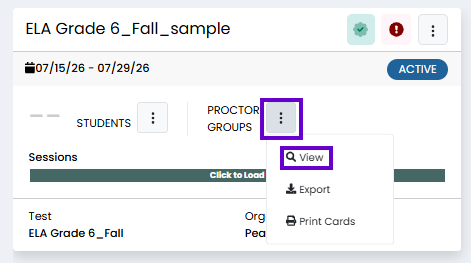
Updated User Interface: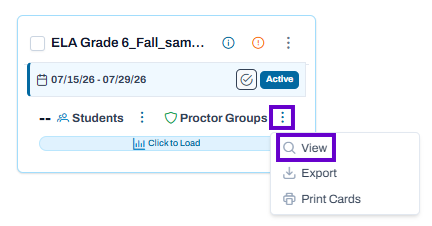
- In the far-right column, select Proctor.
Classic User Interface: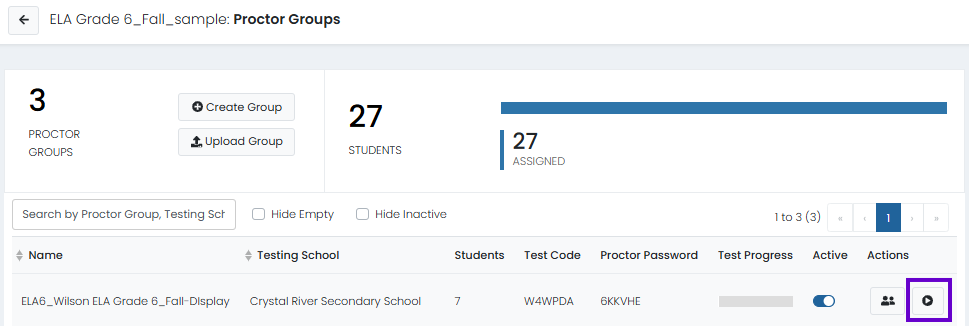
Updated User Interface: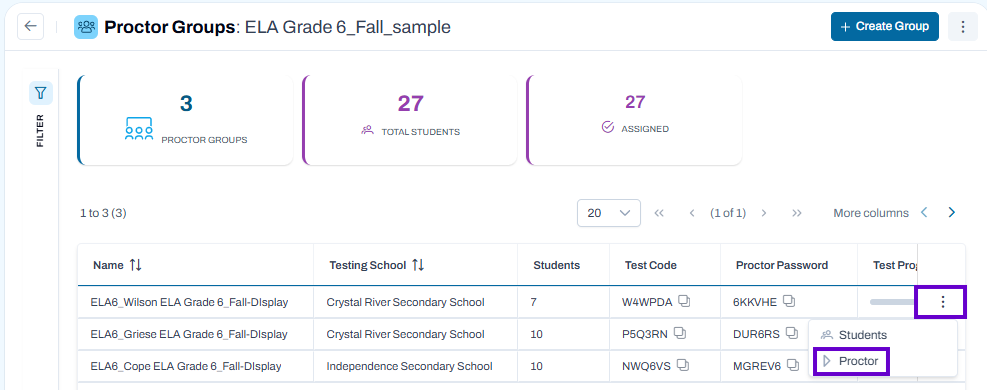
- Select Create Temporary Student above the student list.
Classic User Interface: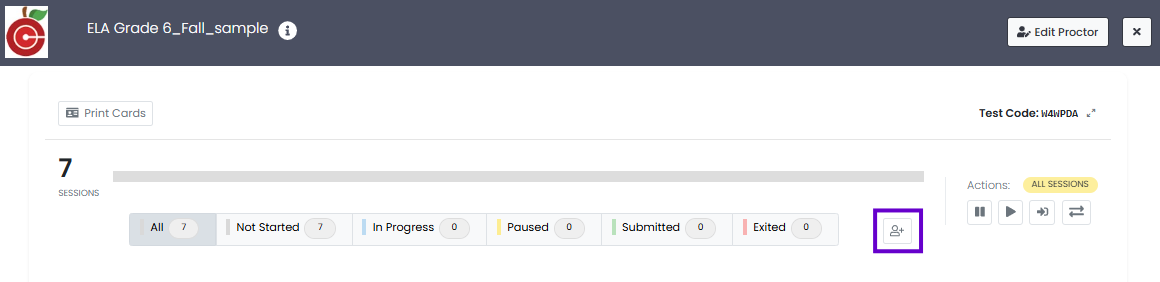
Updated User Interface: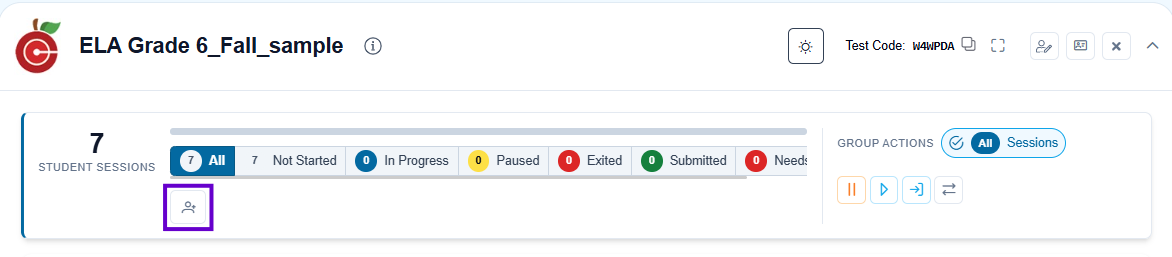
- Enter details for the temporary student.
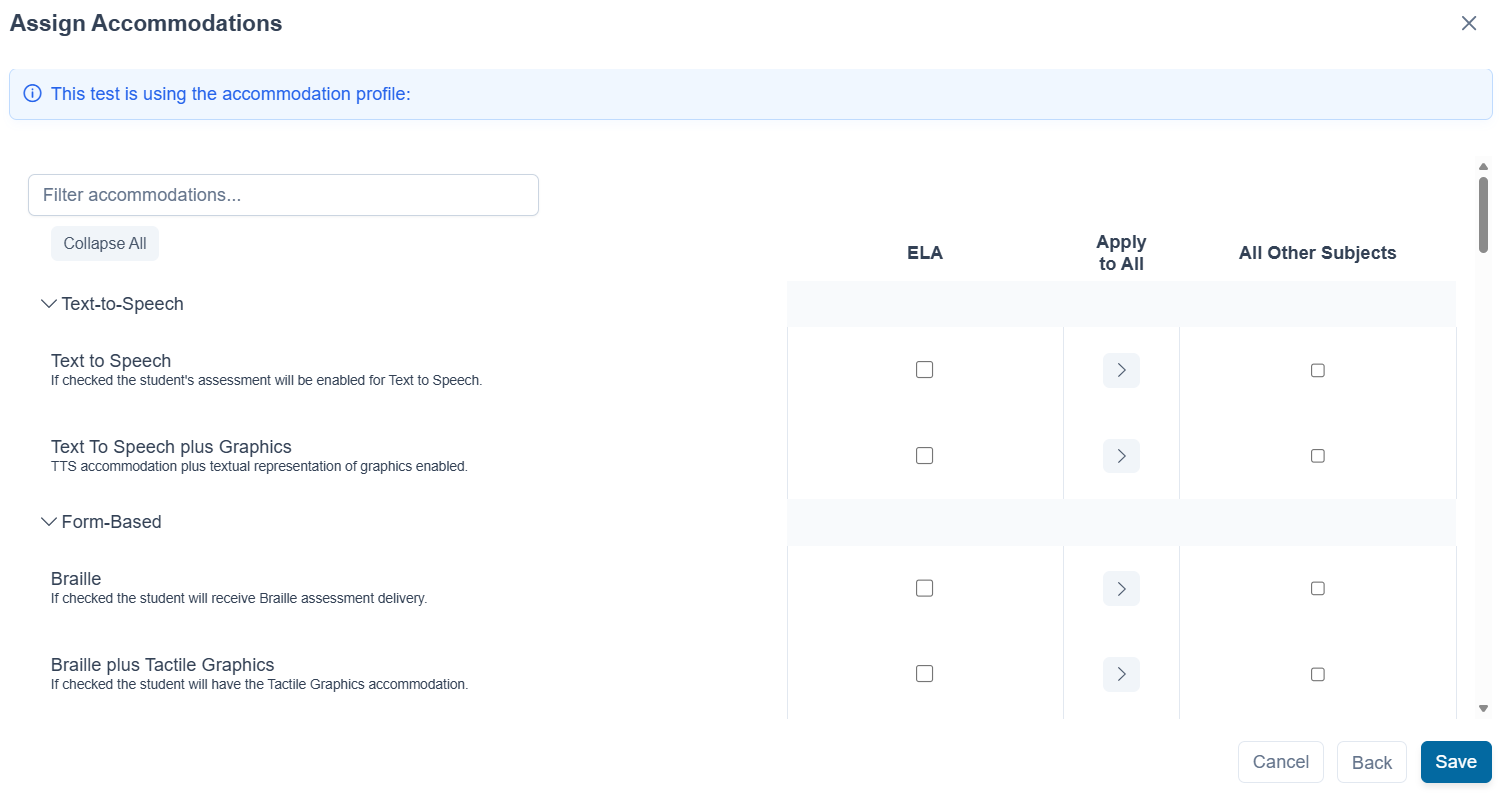
- If needed, select the Add accommodations for this temporary student slider and Next to select appropriate accommodations.
Classic User Interface:

Updated User Interface:

7. Select Save if no accommodations are required.
- If accommodations are required, select Next.
- Enter required accommodations and select Save.
Classic User Interface:

Updated User Interface:
Create the Permanent Student Record
After testing begins, the student's permanent record must be added to ADAM through your organization's established student data process, such as:
- A district or state roster synchronization.
- A student data import using LaunchPad.
- Manual student creation by an authorized user.
Merge a Temporary Student with a Permanent Student
After the permanent student record becomes available:
- Verify that the permanent student record contains the correct student information.
- Locate the temporary student record.
- Complete the merge process to associate the temporary student with the permanent student record.
- Confirm that the student's testing information has been successfully transferred.
When you merge the temporary student, ADAM includes any tests the temporary student took into the permanent record to include that data in reports and also deletes the temporary student record.
1. Select Rostering > Users.
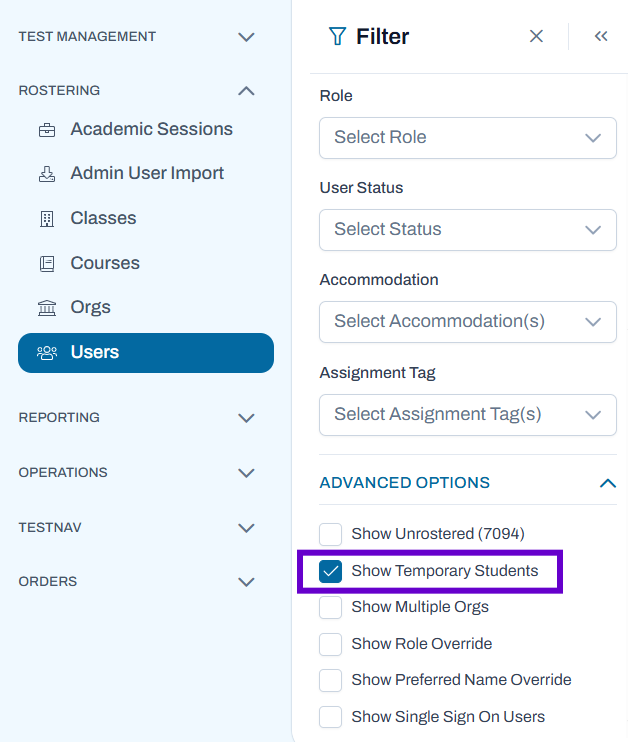
2. Select Show Temporary Students.
Classic User Interface:

Updated User Interface:
3. If needed, you can enter the student name in the Name field to search for the specific student.
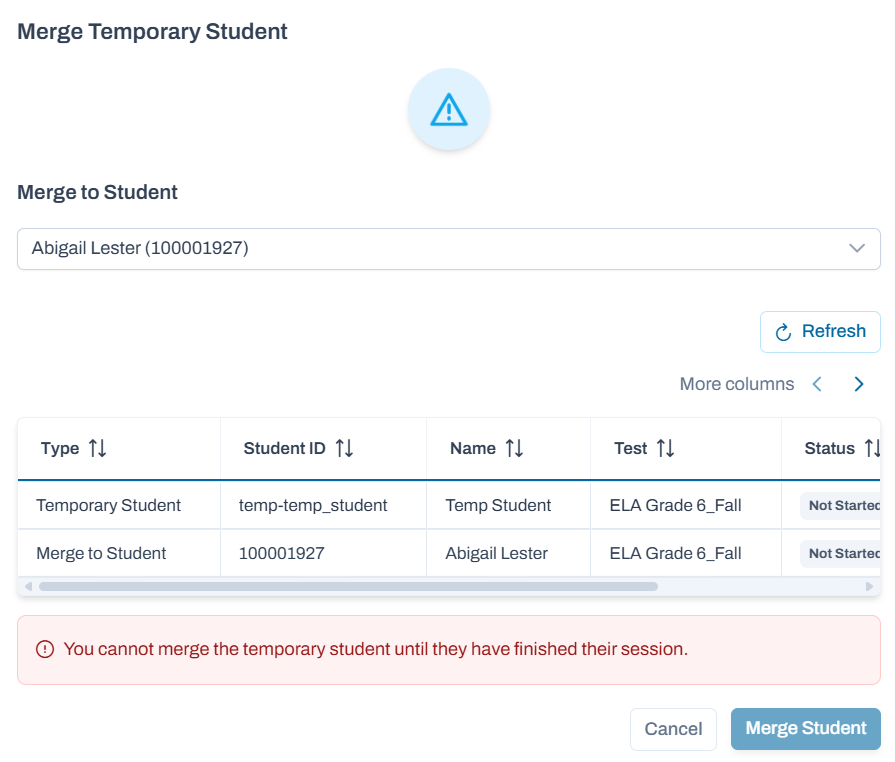
4. In the student's row, select Temporary Student to open the Merge Temporary Student screen.
Classic User Interface:

Updated User Interface:

5. Enter the permanent student name and select Merge Student. You may get an error message if the student has not finished their session. Once merged, the temporary student will be deleted.
Classic User Interface:

Updated User Interface:
Important Notes
- A temporary student is not included in reporting until the record is merged with a permanent student record.
- Only submitted test sessions are transferred when a temporary student is merged with a permanent student.
- Any tests that have not been submitted should be reviewed before performing a merge.
- To ensure accurate reporting and student records, merge temporary student records as soon as the permanent student record becomes available.
- Failure to merge temporary student records may result in missing or incomplete reporting data.
Best Practices
- Verify that a permanent student record does not already exist before creating a temporary student.
- Assign accommodations before testing begins whenever possible.
- Regularly review temporary student records and merge them promptly after permanent records are available.
- Confirm that all required test sessions have been submitted before completing a merge.