Proctoring: Seal Codes
Seal Codes control access between sections of certain multi-section TestNav assessments. Students must enter the appropriate seal code before they can continue to the next section of the test. This helps ensure students move through the assessment only when directed by the proctor and according to testing policies.
See also: Accessing the Proctor Dashboard
Prerequisites
Before providing a seal code:
- The assessment must be configured to use seal codes.
- The student must have completed the current test section.
- The student must be ready to proceed to the next section according to testing procedures.
- The proctor must have access to the seal codes for the assessment administration.
How Seal Codes Work
- A unique seal code is assigned to each section transition within an assessment.
- Students cannot access the next section until they enter the correct seal code.
- The same seal codes are used across all proctor groups within a specific administration.
- Seal codes are unique to each administration. For example, the seal codes used for a Grade 6 Mathematics administration are different from those used for a Grade 7 Mathematics administration.
Important Notes
- The first section of the test does not require a seal code.
- Access to the first section is controlled through the student's test login process, including the test code and, if configured, proctor approval or authorization.
- As a result, the first seal code provided for an assessment grants access to the second section, not the first section.
- Each subsequent seal code unlocks access to the next section in the assessment.
Provide a Seal Code
When students are ready to continue:
- Confirm that students have completed the current section and are permitted to proceed.
- Locate the appropriate seal code for the next section.
- Provide the seal code to students following your organization's testing procedures.
- Instruct students to enter the seal code when prompted.
- Verify that students have successfully entered the next section before continuing testing.
Where are Seal Codes Located?
Seal codes can be found in the Proctor Dashboard as well as in the "Proctor Code" export.
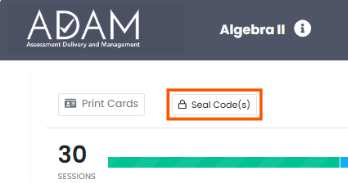
Seal Codes on the Proctor Dashboard
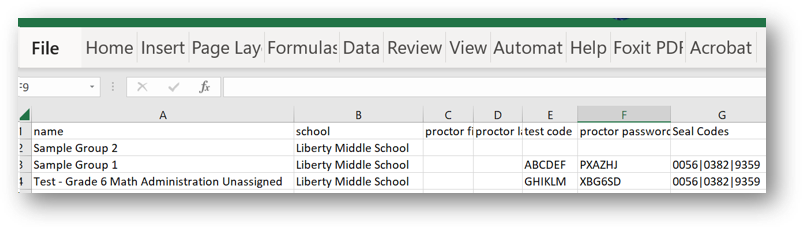
Seal codes in the Proctor Code Export.
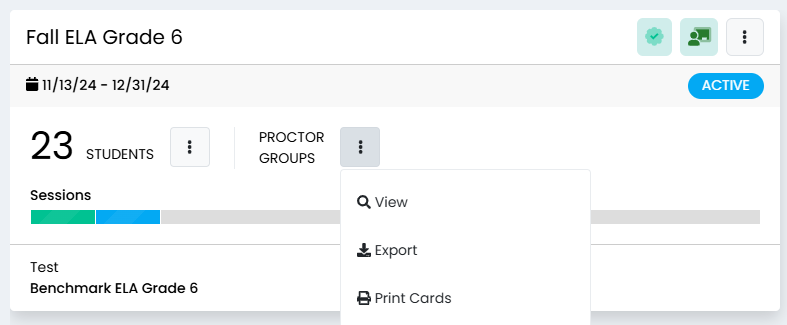
Access the Proctor Code Export
Navigate to Test Management > Administrations > Proctor Groups > Export.
What Does the Student Do with the Seal Code?
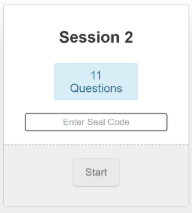
When students are ready to begin a section, they will be prompted to enter a seal code. To avoid students moving ahead, only provide the seal code to students on an as-needed basis i.e., don't write all the codes on the board if students should stop after completing the first section.
Best Practices
- Do not share a seal code until students are authorized to begin the next section.
- Carefully verify that you are providing the correct code for the section students are entering.
- Follow all state, district, and testing program policies governing the distribution and use of seal codes.