Accommodations List
This list includes all available accommodations and accessibility features available to enable in ADAM Client Settings for assigning to students in their Personal Needs Profile. Your setup will likely enable a much smaller set. Typically, if an accessibility feature is turned on both at the form level and as an accommodation for the student, it will default for the students with the accommodation (such as a color contrast setting), and be available for other students to select if needed.
- For tests delivered in TestNav, see also: TestNav Accessibility Tools and PNP Profile, TestNav Expected Behaviors
- For tests delivered in AD Player, see also: Form Settings (for AD tests), Student Test Tools in AD Player
Text to Speech Accommodation Options
Accommodation | Definition and Notes | Available for TestNav? | Available for AD Player? | |
|---|---|---|---|---|
Text to Speech | The computer reads the content within the assessment on the screen to the student via embedded Text-to-Speech functionality. This accommodation is not intended to support students who are blind or visually impaired, nor does it assist with screen navigation. Dynamic TTS (D-TTS) provides TTS through student operating systems (OSS), but the tool functionality is the same. | Y: Dynamic TTS or embedded (depending on availability in the form) | Y: Dynamic TTS only | |
Text to Speech plus Graphics | TTS accommodation plus textual representation of graphics enabled. This accommodation is not intended to support students who are blind or visually impaired. Graphics in items must be tagged with Alt text to support Dynamic TTS. | Y: Dynamic TTS or embedded | Y: Dynamic TTS only | |
Form-Based Accommodation Options
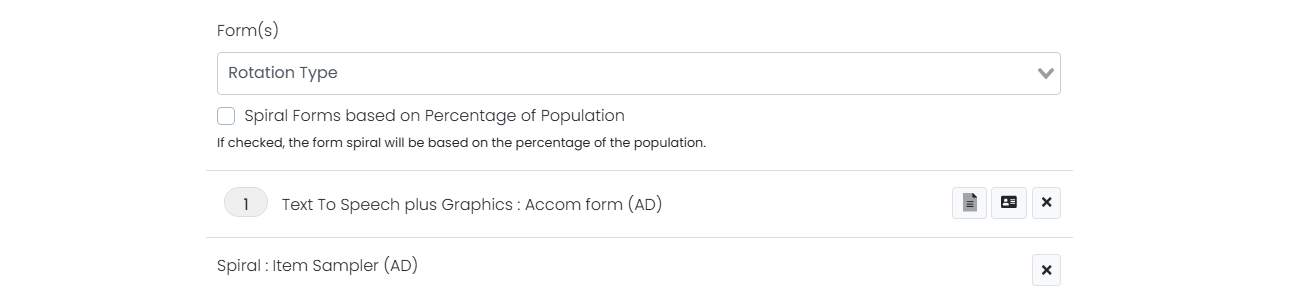
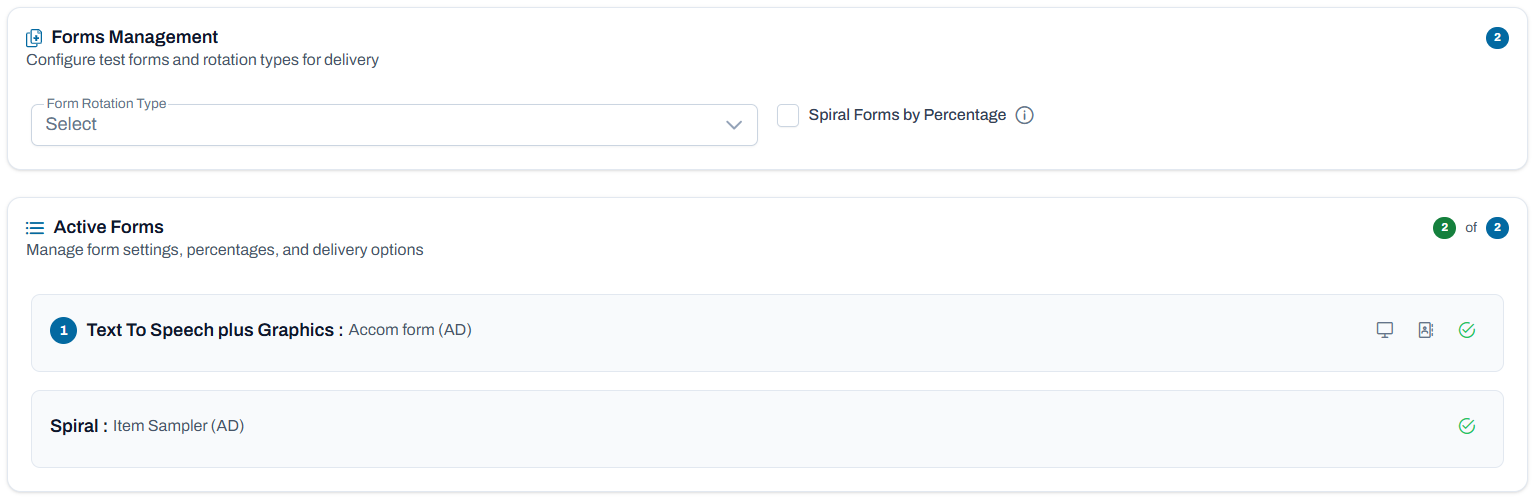
For tests with multiple forms, some accommodations are associated with specific online forms. Common examples include Spanish, text-to-speech, braille, large print, paper and closed captioning. Accommodation assignments also impact what printed support material is needed, such as scripts for human reader. Because each student can only receive one online test form, there is a hierarchy to determine which for a student will get if multiple form-based accommodations are granted. Do not assign competing accommodations, such as human reader and text-to speech.
For students to receive the correct online or paper test (if ordering from Pearson), they must be tagged with the appropriate accommodations for the accommodations profile linked to the test and the test must have the corresponding form available. Contact your Pearson Delivery Team for details on tests created for TestNav use.
See also: Client Settings: Accommodations Form Hierarchy
Classic User Interface:
Updated User Interface:
Accommodation, Definition and Notes | Available for TestNav? | Available for AD Authoring/ Player? | |
|---|---|---|---|
BrailleBraille assessment delivery. | Y | N | |
Braille plus Tactile GraphicsStudent needs a set of hard copy braille test booklets with embedded tactile graphics. | Y | N | |
Closed CaptionClosed captioning and subtitling provides additional or interpretive information on videos. Select language:
| Y | Y | |
LanguageUsed to assign the translated form administered for testing. For Spanish only, the TestNav navigation text is translated as well. Select language:
| Y | Spanish item content and TTS supported. | |
Large PrintStudent responds in large print test booklet and responses are transcribed. | Y | N | |
Non Screen ReaderThe test is read aloud or signed to the student by the test administrator. For TestNav delivery, the Proctor Dashboard provides a Read Aloud link for the proctor to view each item on a form that matches what the student is shown. For students who have a double time, the proctor may be prompted to submit themselves and log back in to re-access the Read Aloud, but the students are not impacted and still have their allotted time. For AD Player delivery, when Read Aloud is activated, the link for the proctor is in the Actions menu for applicable students. Proctors can open and read a test to students that matches what the student receives. Neither the proctor responses nor their session information will be saved when this is turned on, only the student's session. As an alternative, some customers have the test administrator read aloud from a printed paper script that matches the form used by the student. | Y | Y | |
PaperStudent requires paper and pencil test format as an approved accommodation. Enable the 'Paper with Language' option instead if both English and Spanish paper versions are available. | Y | N | |
Screen ReaderExternal assistive technology software that is used to assist a visually-impaired student who is experienced with screen-reader technology. Used by the student to navigate the test as well provide access to assessment content. Blind or visually impaired students can use a screen reader to read test content (and TestNav user interface elements) either thorough audio output or on a braille display. NVDA, JAWS and VoiceOver screen readers are supported for use with TestNav. While other screen readers might work with TestNav, Pearson tests and confirms only these listed. To use NVDA or JAWS screen readers with secure tests (running in kiosk mode), an administrator for your program must add specific executable files to the allowlist within your assessment management system. See your Pearson program team for details. For non-secure tests, screen readers are not restricted. When Screen Reader is activated, the textGraphics option reads the screen reader alt text attached to any image. | Y | Y | |
Sign LanguageChoose ASL or Signed English. Students can view a video with a person translating the item text to ASL. | Y | Y | |
Test Delivery Accommodation Options
Accommodation | Definition and Notes (Default names - may have alternate label.) | Available for TestNav? | Available for AD Authoring/ Player? | |
|---|---|---|---|---|
Add test time | If the test is timed, granting this accommodation will automatically increase this time for the student by their assigned value:
Note concerning reseating: Add Test Time is integrated with TestNav to allow additional time to be added to the test once a student logs in, for those students with applicable PNP settings who are allowed extended time while taking a test with a timer. The student's accommodation setting can be updated at any time. However, updated PNP settings are only reflected on the session after a reseat action from the proctor dashboard and after the student logs back into TestNav. The reseat action will verify that the extended time setting is not lower (reducing time) than the previous setting before allowing the action. If it is lower, no update will be made to the Accommodation for that session. | Y | Y | |
Answer masking - Disable | Will turn off answer masking for assigned students even if granted at the form level. | Y | Y | |
Answer masking | Students see a mask covering multiple-choice distractors, with the option to click to expose each individually. They can turn answer masking on and off over each distractor or turn answer masking on or off on the entire question. If enabled for student as an accommodation, answer choices for multiple-choice items are covered when the item is first presented. The student has the ability to remove the masks at a time of their choosing. If turned on at the form level, students can select it from the User drop-down menu. | Y | Y | |
Color contrast | While all students can opt in to use, students with the accommodation will see assigned color combo by default. The interface launches with the color combination pre-selected alternate color combination for the text (foreground) and background colors. For students needing this accommodation only select one color option (Background/Font Color). Students assigned a default can navigate to other color combos. Colors are:
Depending on the item type, the color-contrast setting may display a box or an outline around an item, but not fill it with the selected color. These items include:
| Y | Y | |
Dictionary | For TestNav, choose from:
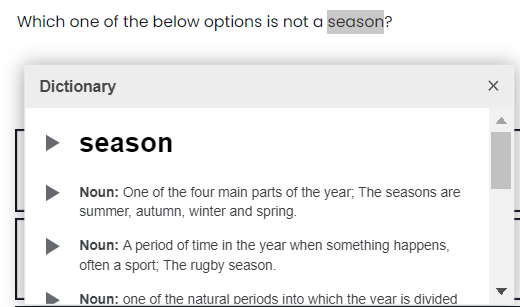
In AD Player, the tester can select a single word and have a dictionary entry appear to help with understanding.
| Y | Y | |
Disable item timer | This accommodation disables all item timers on the test for the associated student. | Y | N | |
Dynamic Text-to-Speech | *Do not enable. For both AD Player and TestNav, as a best practice to avoid confusion, use the 'Text to Speech' accommodation (first in accommodation list) instead of this one as that accommodation will enable dynamic TTS if a form on which 'built in' TTS is not available. Dynamic TTS renders a TTS tool on the student's test. | Y* | Y* | |
Enable extensions | Student’s online test will start with the ability to select Co-Writer or Read&Write software embedded within TestNav. Tools for these software options (Speech to text, Text to Speech, Word Prediction) will be available for use dependent on the student choice selection when logging in. | Y | N | |
Illustration Glossary | An embedded designated support within TestNav that provides visual, image‑based glossary entries for specific words that appear in test items. | Y | N | |
Line Reader Mask | Students provided the option to use the Line Reader Mask see the option in the User drop-down menu. The Line Reader Mask helps the student to focus on specific parts of the item. The student can select and drag both handles to whatever size they need to show and hide as much as the item they want to focus on, like a word, phrase, or any portion. They can also select and drag the move icon to move the window around in the mask. They can change this as much as they like as they work through their test questions. To close the Line Reader Mask, the student can go back to the user dropdown and select Hide Line Reader Mask. | Y | Y | |
Magnification/Zoom | TestNav has this as an accommodation tool in the user menu: it can be preset to a size in the accommodation profile. Valid magnification sizes are: 100, 110, 120, 150, 175, 200. *ADAM does not have this tool, but it should be noted that student can use browser buttons (command +/-). | Y | N* | |
Magnifier | In TestNav, the magnifier does not persist; students should open the magnifier on each item, as needed. Students cannot click through the magnifier to answer an item. They can also move it using the zoom feature by pressing CTRL (or Command) +/-. Select:
| Y | Y | |
Maximum Pause Time | Provides testers with unlimited time if selected. | Y | N | |
Mouse Pointer | Alternate view of mouse pointer. Permitted values are:
| Y | Y | |
Online Calculator | Choose from:
| Y | Y | |
Pop Up Glossary/Keyword Translations | Choose from:
| Y | N (Note: At the item level, a pop glossary can be enabled for all students.) | |
Readable Mode | Students provided the option for Readable Mode can see a two-column item in a single, scrollable pane to increase their ability to concentrate on item content. | Y | Y | |
Read passage skip overwrite | Enable when student should not hear passages read loud. Items can be configured to allow for exceptions for parts of text that should be read (for example, instructional text). | Y | N | |
Repeat Item Audio | Allows student to listen to audio a specified number of times. | Y | ||
Stacked Languages | Displays two languages simultaneously for bilingual support. A Spanish and English pairing is currently available. | Y | N | |
Support tool | Use to assign the form administered for computer-based testing when an assistive technology application is needed that requires security pass through to interact with TestNav. | Y | N | |
Spell Checker | Allows students to check their spelling in extended response items using the rich text editor. For TestNav, students can turn on the spell check when answering an item that requires a textual, extended response. When spell check is on, a squiggly red line appears underneath misspelled words, and students see word suggestions for misspelled words. Spell check does not check words that are all in caps (HELLO) or words that are inverse camel cased (CaMeL). It does check regular camel case (cAmEl). Spell check uses the Hunspell dictionary and requires an Internet connection to compare the typed words with the dictionary on Pearson servers. | Y | N (Note: At the item level, spell check can be enabled for all students.) | |
Toggle Languages | Allows student to switch between languages during a test. English and Spanish are currently available. | Y | N | |
Translation Tool | Provides on-screen translation support in 22 different languages. NOTE: TestNav has noted that the AWS Translation service does not support these languages: Hmong{“hmn“}, Ilokano{“ilo“}, Karen{“kar“}, and Lao{“lo“}, while the current PAICE translation service does. TestNav has noted they will switch from PAICE to AWS on 2/19. ADAM has scheduled the removal of these four languages in the 2/22 release.
| Y | N | |
White Noise | Provide White Noise accommodation. Previously, TestNav turned on white noise for students at the form level. | Y | N | |
Local Accommodation Options
Local accommodations are provided at the testing location, not by the test delivery platform. The exact implementation and functionality can be whatever is defined by local accommodation specifications - these act as information tags on what should be delivered for the student. They could be used to alert the proctor to allow or give a manual tool to a student, or to drive specific forms based on the accommodation.
Accommodation | Description |
|---|---|
100 number table | Student allowed the use of a 100 number table. |
Abacus | Student allowed the use of an abacus. |
Alternate response options | As defined locally. |
Amplification | Amplification provided for the student. |
Braille notetaker | For a student who is blind or visually impaired, responses are captured by a Braille Note-taker. |
Braille writer | For a student who is blind or visually impaired, responses are captured by a Braille Writer. |
Breaks: Securely Extend Session Over Multiple Days | As defined locally. |
Calculation device (on calculator parts) | On calculator parts, the student is allowed to use a specialized calculator as an accommodation of the test with an embedded platform provided calculator. |
Color Overlay | Color overlay provided for the student. |
Constructed response speech-to-text | The student's responses to constructed response items are captured by an external Speech to Text device. |
Cued Speech | Cued speech provided to the student. |
Double Time | For tests without a configured hard stop, allow the student to have additional time. |
Extended Time | For tests without a configured hard stop, allow the student to have additional time. |
Handheld Calculator | Allow the student to use a handheld calculator. |
Home Administration | Student will test at home. |
Human Signer | For tests that do not have a specific Human Signer accommodated form, indicates this student required a signer for the test or test directions. |
Medical device | Student will make use of a medical device during testing. |
Monitor test response | The test administrator or assigned accommodator monitors proper placement of student responses on a test booklet/answer document or within a computer-based test. The test examiner or assigned accommodator cannot assist the student with changing a response. |
Multiplication Table | Student allowed the use of a multiplication table. |
Noise Buffer | Provide the student a noise buffer. |
Paper with Language Choose from:
| Use this accommodation when there is both a Spanish and English paper version. Accommodation must specify which language the student needs. |
Personalized auditory notification of remaining time | Test administrator will provide a personalized auditory notification of remaining time. |
| Read Aloud/Human Reader | When only one language is applicable, this accommodation can be used to assign a read aloud form to students. The test administrator will be able to access a view of the test. |
Read Aloud with Language Choose from:
| Use this accommodation when there is both a Spanish and English version of read aloud. Accommodation must specify which language the student needs so they and the test administrator get the correct form. |
Scribe | The student’s responses are entered by a person other than the student. |
Selected response speech-to-text | The student's responses to selected response items are captured by an external Speech to Text device. |
| Stop-the-clock Supervised Breaks | Student allowed stop-the-clock supervised breaks. Take into account if test settings include a hard or soft timer and if pause is available/enabled. |
Student reads assessment aloud to self | The student reads the assessment aloud to themselves and may use an external device such as a whisper phone. The student must be tested in a separate setting. |
Temporary Accommodation | For students who have a temporary need for an accommodation (e.g., broke arm and can't type), provide a text field to indicate details. |
Time and a half | For tests without a configured hard stop, allow the student to have additional time. |
Translated in Student Native Language | Local policy dictates if this refers to complete test or test directions only. |
Unique accommodation | An accommodation required for a student with a disability or an English Learner that is not listed but otherwise required for the student. Provides a text field to add details. |
Word prediction | The student uses a word prediction external device that provides a bank of frequently- or recently-used words as a result of the student entering the first few letters of a word. |
Word-to-word dictionary | A word-to-word dictionary is provided to the student. |
Custom Accommodation and Support Options
Like most accommodations in the Local category, these do not directly affect the test player by turning on tools. They both could be used to alert the proctor to allow or give a manual tool to a student, or to drive specific forms based on the accommodation.
Accommodation | Description |
|---|---|
Alt Aid Support | As defined locally. |
Answers recorded | The student records answers directly in the test booklet. Responses must be transcribed verbatim by a test administrator into a student answer document. Responses that have not been transcribed will not be scored. |
| Bilingual glossary for MSs (Support) | As defined locally. |
Communication Assistive Script | As defined locally. |
Directions in native language | The test administrator reads aloud, and repeats as needed, test directions in the student’s native language. Select from:
|
Extended time (Support) | Provide Extended Time to the student. Not compatible with online forms set up with a hard stop. |
Frequent breaks (Support) | Student is allowed to take breaks, at their request, during the testing session. |
Individual/Separate Setting (Support) | Student is tested in a specialized area or setting (e.g., front of the classroom; seat near the door; library, etc.). |
Kurzweil | Student will use Kurzweil support. |
| Native Language Word-to-Word Dictionary | Student will use a native language word-to-word dictionary. |
| No Accommodations | Optionally tag students who are not assigned any accommodations. |
| Recorded Voice File | Student will listen to a recorded voice file. |
Small "Group" Setting (Support) | Student is tested in a separate location with a small group of students with matching accessibility features or accommodations/testing needs as appropriate. |