The Move to Section is a permissioned feature that allows proctors to assign students to begin a multi-section TestNav assessment in a specific section. When a student is moved, the change takes effect the next time the student logs in to the test.
Prerequisites
Before moving students to a different section:
- The assessment must be configured as a multi-section TestNav assessment.
- Section movement must be available for the assessment.
- Students must belong to your proctor group.
- Ensure section movement complies with your organization's testing policies and procedures.
Move All Students to the Same Section
To assign all students in the proctor group to the same section:
- Open the Proctor Dashboard.
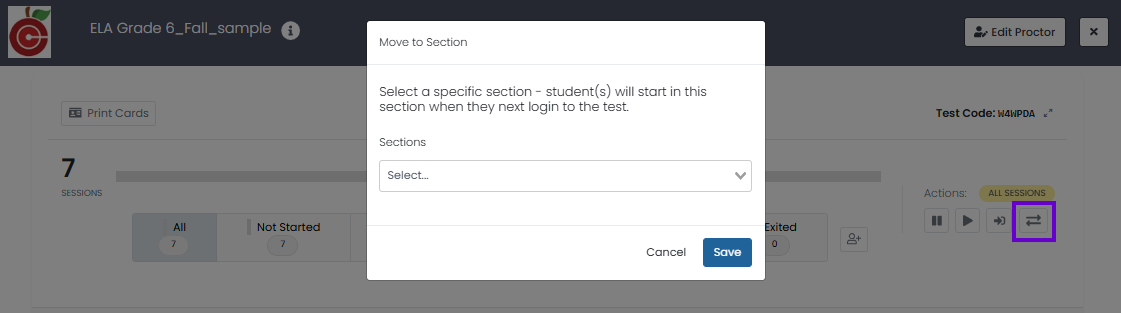
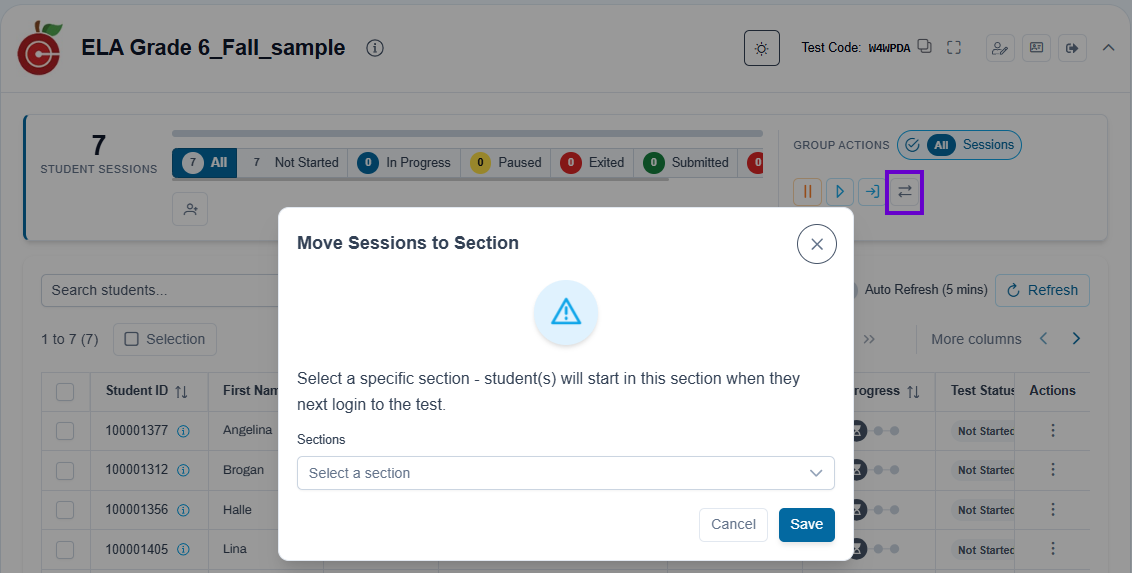
- From the Group Actions menu, select Move Sessions to Section.
In the Move Sessions to Section dialog, select a section from the Sections drop-down list.
Select Save to apply the change.
All students in the proctor group will start in the selected section the next time they log in.
Classic User Interface:
Updated User Interface:
Understanding Section Assignments
By default, students typically progress through assessment sections in the prescribed order. When a student is manually assigned to a different section, the student's next test login begins in the selected section rather than continuing the standard progression.
A manual section assignment may be used when a student:
- Needs to resume testing in a different section.
- Missed a previously scheduled testing session.
- Must be aligned with the testing progress of a group, when permitted by testing policy.
Verify the Change
After saving the section assignment:
- The updated section assignment is reflected on the Proctor Dashboard.
- The change remains in effect until the student logs in and begins testing from the assigned section or another section assignment is made.
Move Individual Students to a Section
To assign a specific student to a section:
- Open the Proctor Dashboard.
- Locate the student.
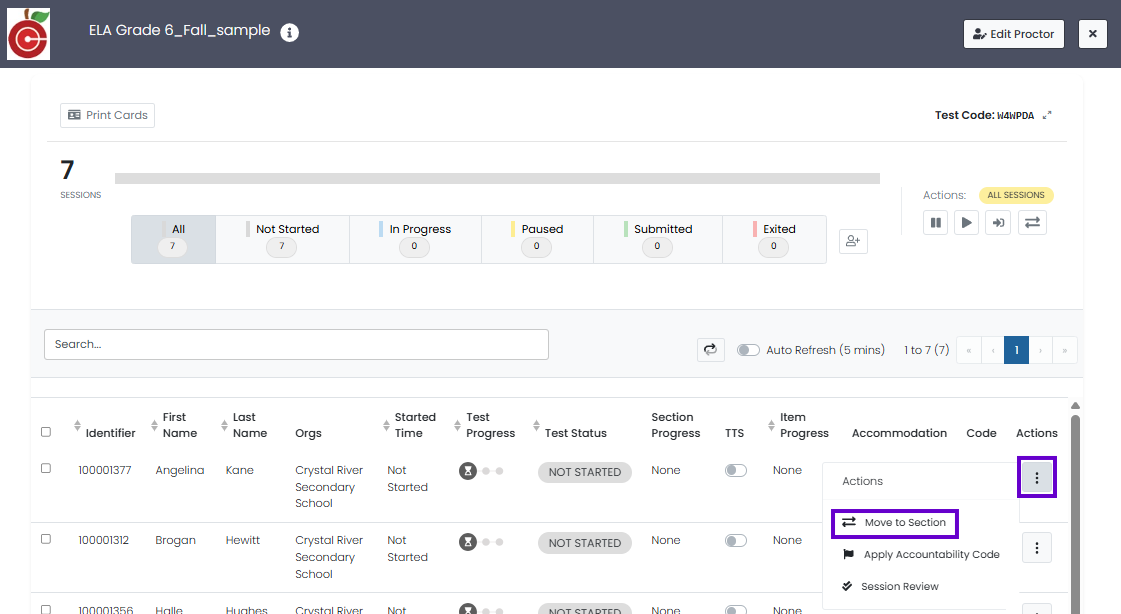
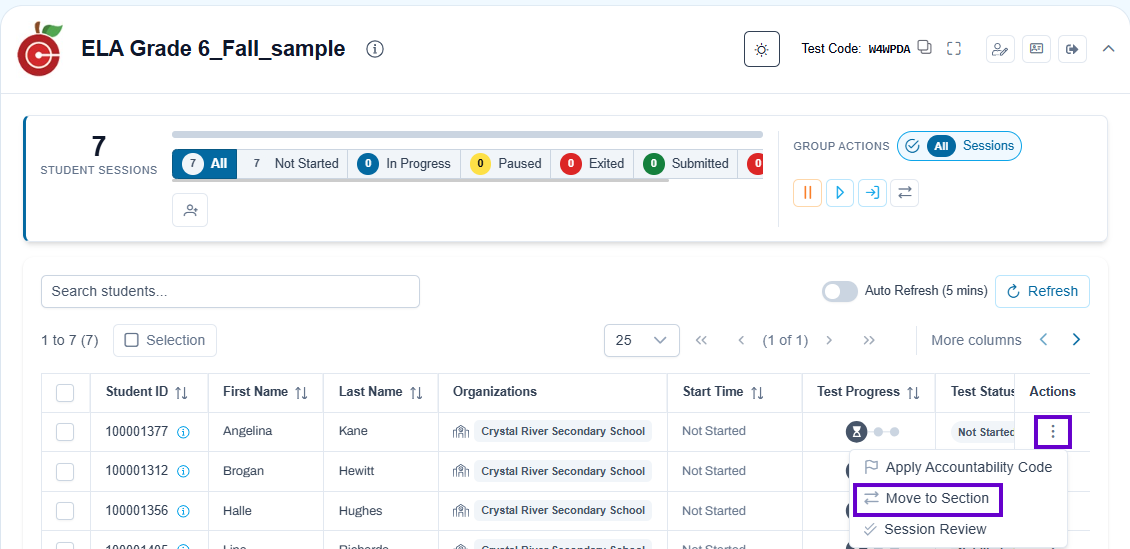
- Open the student's Actions (kabob) menu.
- Select Move to Section.
- Choose the desired section.
- Confirm the change.
The student will start in the selected section the next time they access the test.
For instructions on applying actions to selected students, see: Apply Actions to Selected Students Only.
Classic User Interface:
Updated User Interface:
Some assessments display a Choose Form Type option in the Move to Section dialog.
This option changes how section names are displayed to the proctor. For example, you may select the Regular form to view section labels in English instead of a translated form such as Spanish.
Important: The selected form type only affects the section labels shown in the dialog. Regardless of the form type selected, students are moved to the section chosen from the section list.
Tiny Link: https://support.assessment.pearson.com/x/AoCbCQ