
-
Created by
 user-c5bed, last updated on Oct 25, 2016
2 minute read
user-c5bed, last updated on Oct 25, 2016
2 minute read
Some features are only available to some user accounts. Each user account has a user role(s) and permissions associated with it. These permissions control the data the user can view and actions the user can perform. If you do not see a specific feature, your account is not configured to access it. See Manage Users for more information.
Your testing program will provide information identifying user roles and what each is permitted to do and see.
To release published reports to different organizations, follow these steps:
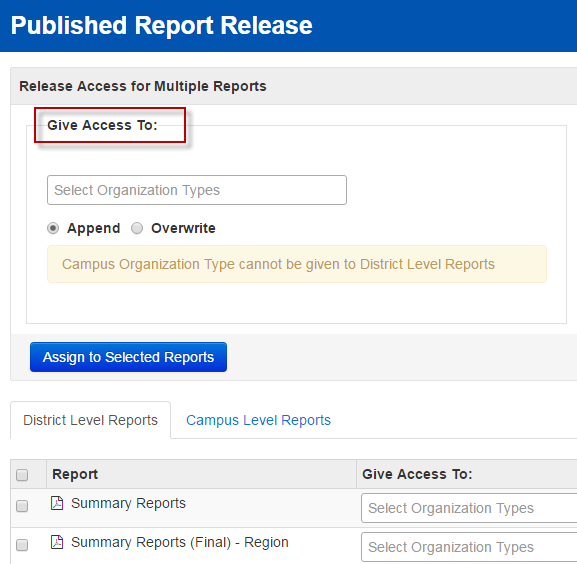
From Setup > Published Report Release, select the tab corresponding to the organization level to view and provide access to available published reports.

Select the reports you want to release to the organizations.

To release individual selected reports, from Give Access To, select the organization type (for example, district, school, or campus).

Alternatively, to release all the selected reports, from Release Access for Multiple Reports > Give Access To section at the top, select the organization type.
- To add an organization type to the list of previously selected organization types, select Append.
- To remove previously selected organization types, click Overwrite.
Click Save.