You are viewing an old version of this page. View the current version.
Compare with Current
View Page History
« Previous
Version 6
Next »
If you have more than a few users to add of the same user role type, bulk upload rather than create the accounts individually. Before adding new users, confirm they are not already coming in via a data synch from your SIS, if applicable. Each user can only be assigned to one user role, so if a user serves a dual role, assign the higher one.Audience: State and District Test Coordinators
See also: LaunchPad "Team Member" Experience for details on how to sign in, Create and Edit Users for creating users individually
To bulk upload users for the same user role:
- On the Team Member page in the left navigation column, click Data Import.
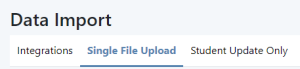
- Click the Single File Upload tab.
- Click Upload File (there are two links; both go the same place).
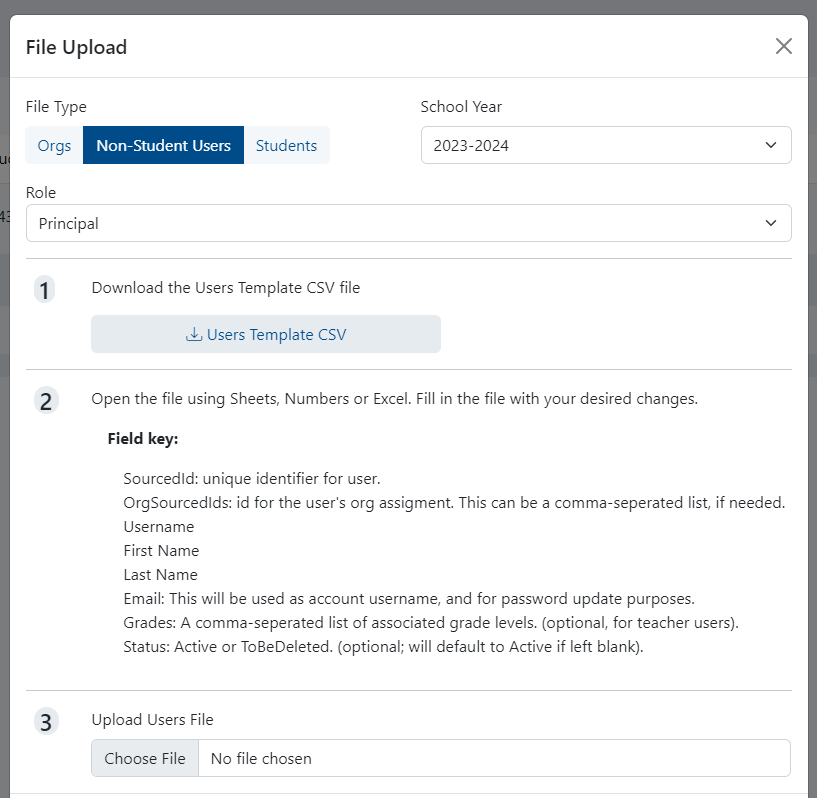
- For File Type, select Non-Student Users.
- Select a user role.
- Review the instructions in the File Upload window.
- Click the button to download the user template. This is the file you will fill in with new users and then upload from this same window.
- Open the downloaded template
- Fill in the data as described in the Field Key:
- Source ID can be email or another unique identifier
- For OrgSourcedID, - dfsf
- Repeat for other user roles as needed.
Tiny Link: https://support.assessment.pearson.com/x/GgE-CQ
