
| Excerpt |
|---|
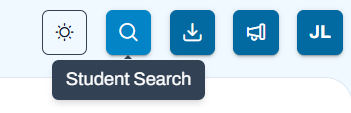
The Student Dashboard, accessed by a student search function, gives users an overall dashboard holistic view of a specific student's information. This includes consolidated views for Performance, Sessions, and Demographic & Accommodations information. The dashboard allows the user to take action(s) on the information displayed, as applicable with permissions assigned. This includes printing a PDF of all performance results or viewing individual student reports. OnTo access the Student Dashboard for a student: 1. On the Navigation Bar , click thein the top right corner, select the Student Search icon. Classic User Interface: Updated User Interface:
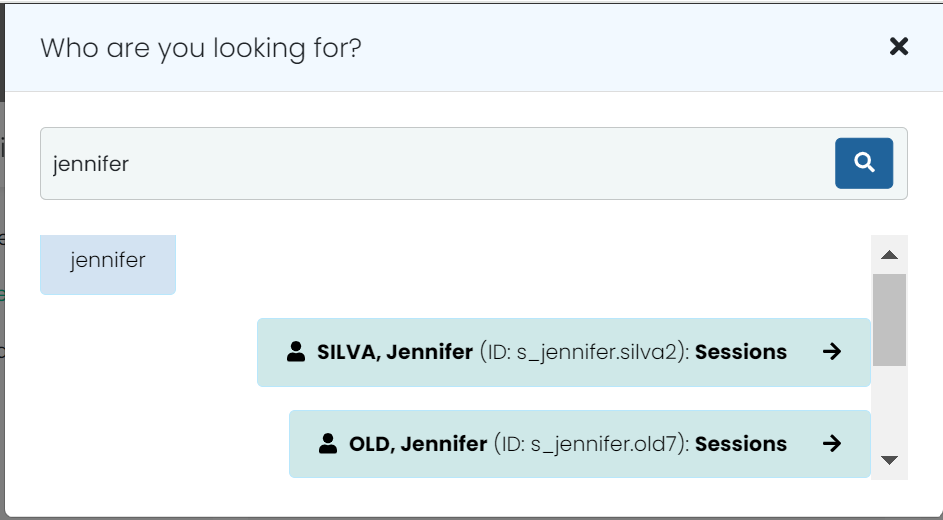
2. Enter the full or partial name of a student. 3. Students matching your request appear under the text you entered. Note: You can scroll up to see previous results grouped under search text. Classic User Interface:
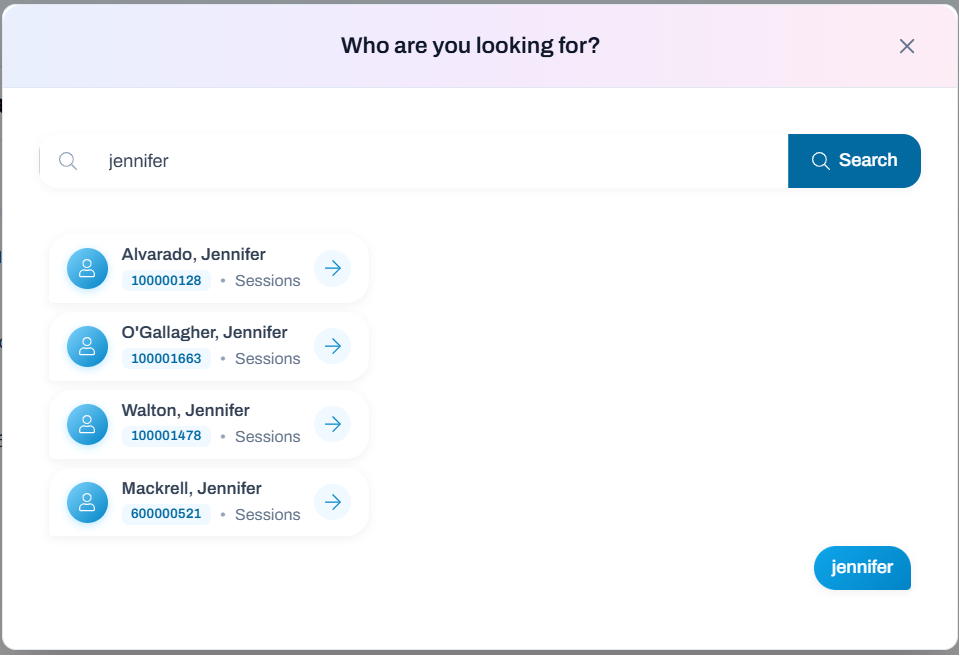
Updated User Interface:
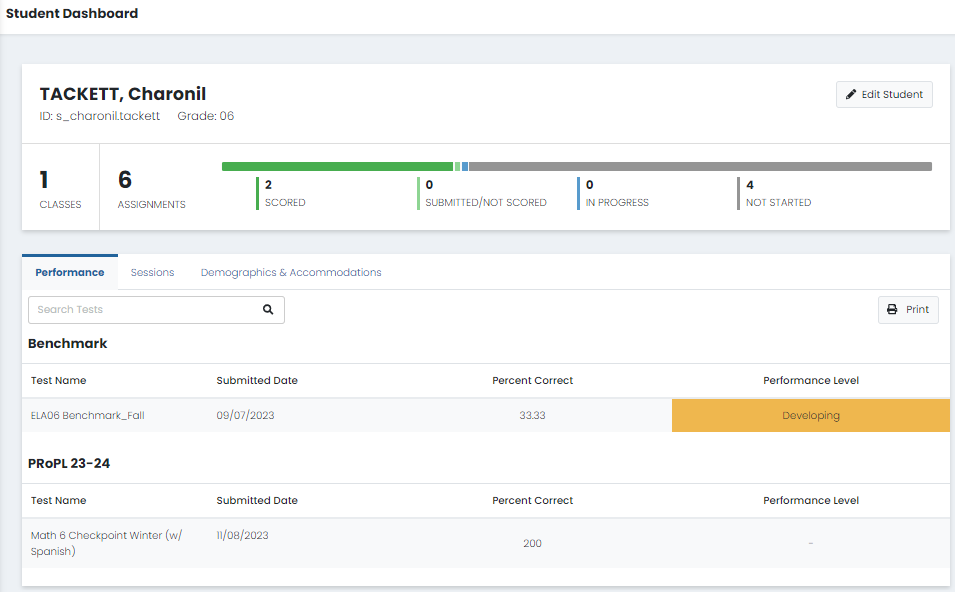
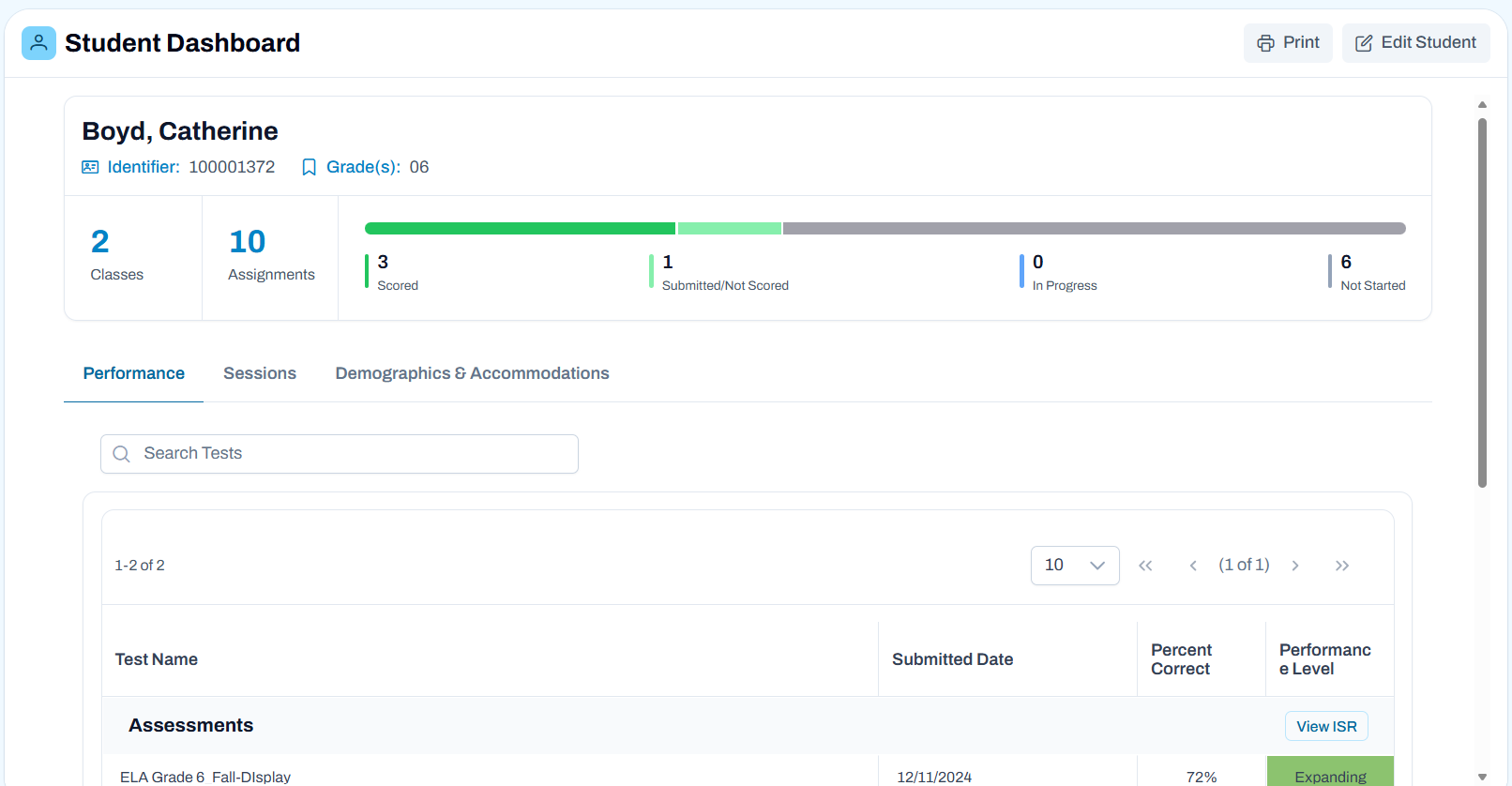
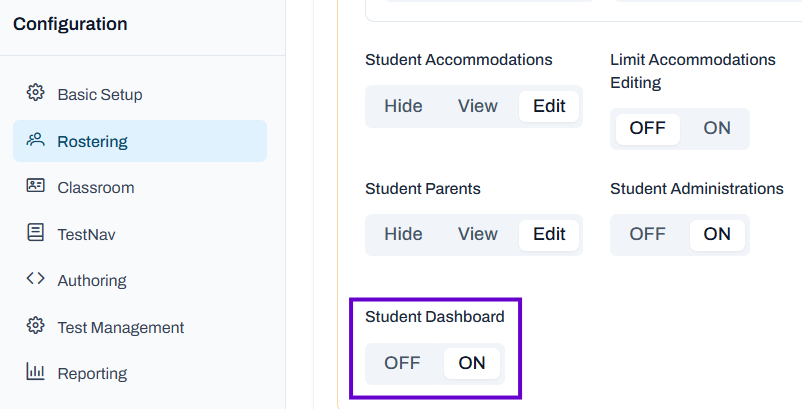
4. Select a student to access the Student Dashboard Sample Student Dashboard Note for Site Administrators: This Student Search feature is controlled with a new user role permission in Rostering called ‘Student Dashboard’. cate a StudentTo access the Student Dashboard for a student: In the top navigation bar, click the Student Search icon.Type a full or partial name and click the Search icon to return all matching results grouped under your entry. 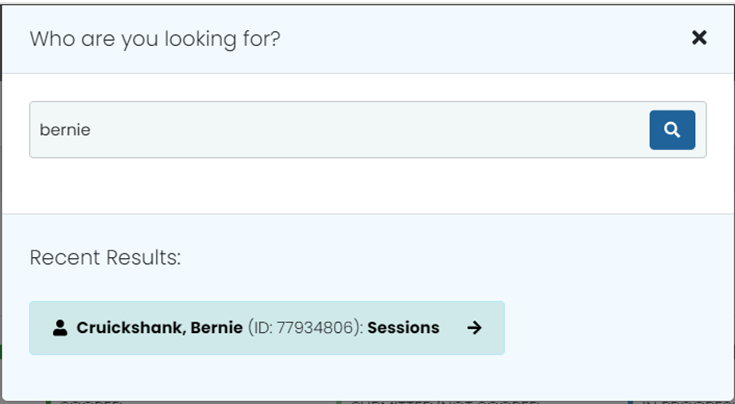 Click the name of a student . Student Dashboard: Overview SectionThe top section of the dashboard indicates:
Some users will have rights to an Edit Student button which allows changes in the Student Profile, such as an update to accommodations. Student Dashboard: Performance ViewIn the default Performance View, scores for submitted tests are grouped by test program. Available score types will vary by program. There is an option to print this tab. Classic User Interface:
Updated User Interface:
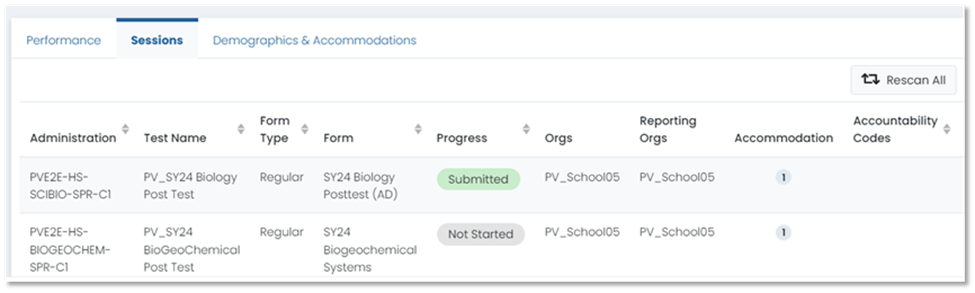
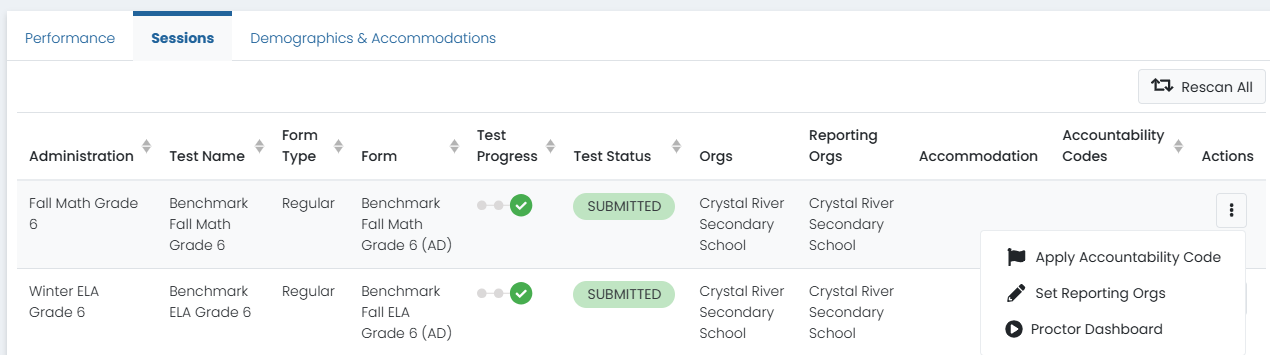
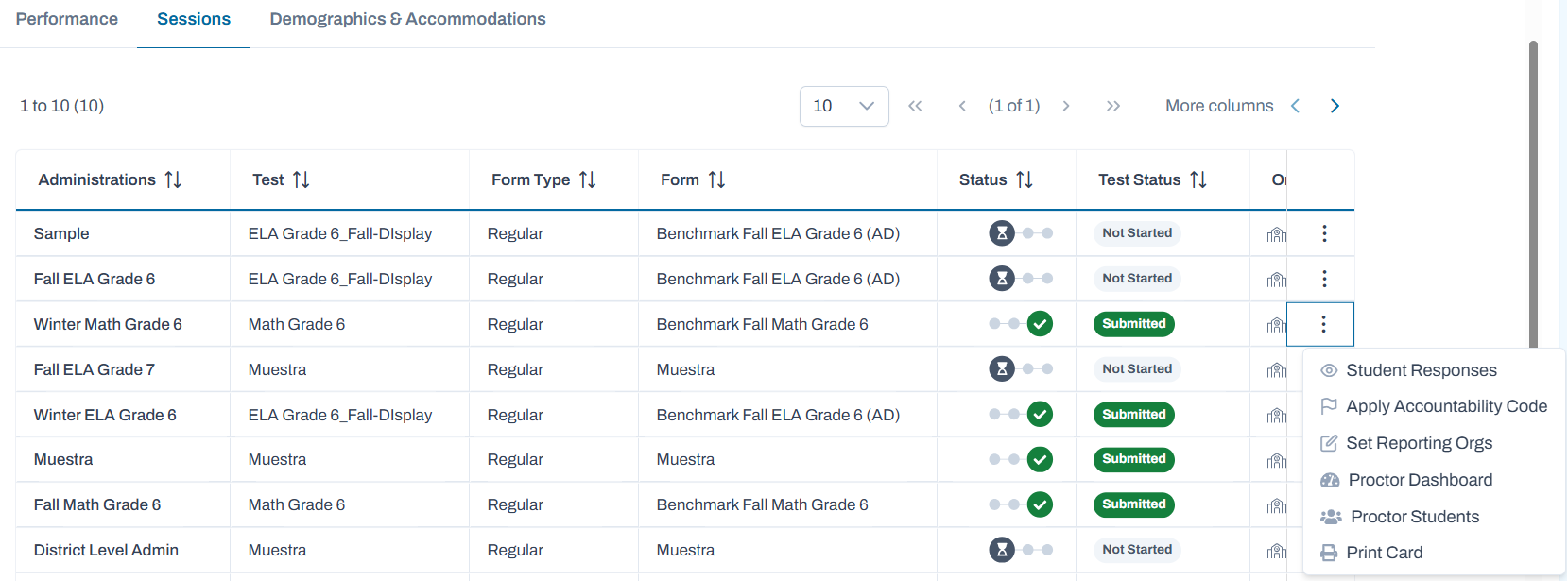
Student Dashboard: Sessions ViewClick the Sessions tab to view a list of all all test assignments and their current status. Most columns are sortable by clicking selecting the arrows. In the Accommodations column, hover over a number to view the specific accommodations assigned to the student. Options available in the Actions menu per session depend on your user permissions, test status and site setup. Some users may have permission to rescan all sessions; this is recommended if a student has changes to accommodations or class enrollment. See also: Rescan to Update Session Information. Classic User Interface:
Updated User Interface:
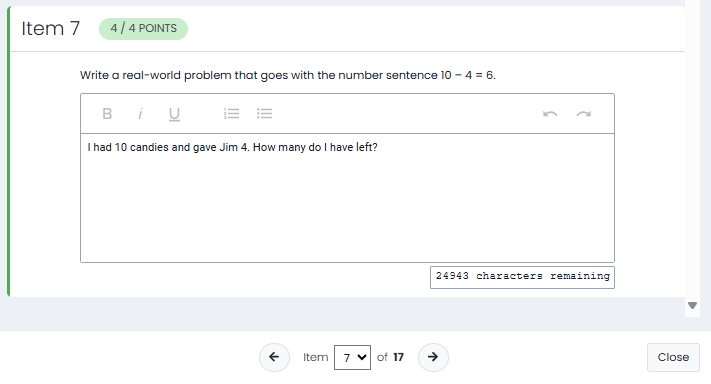
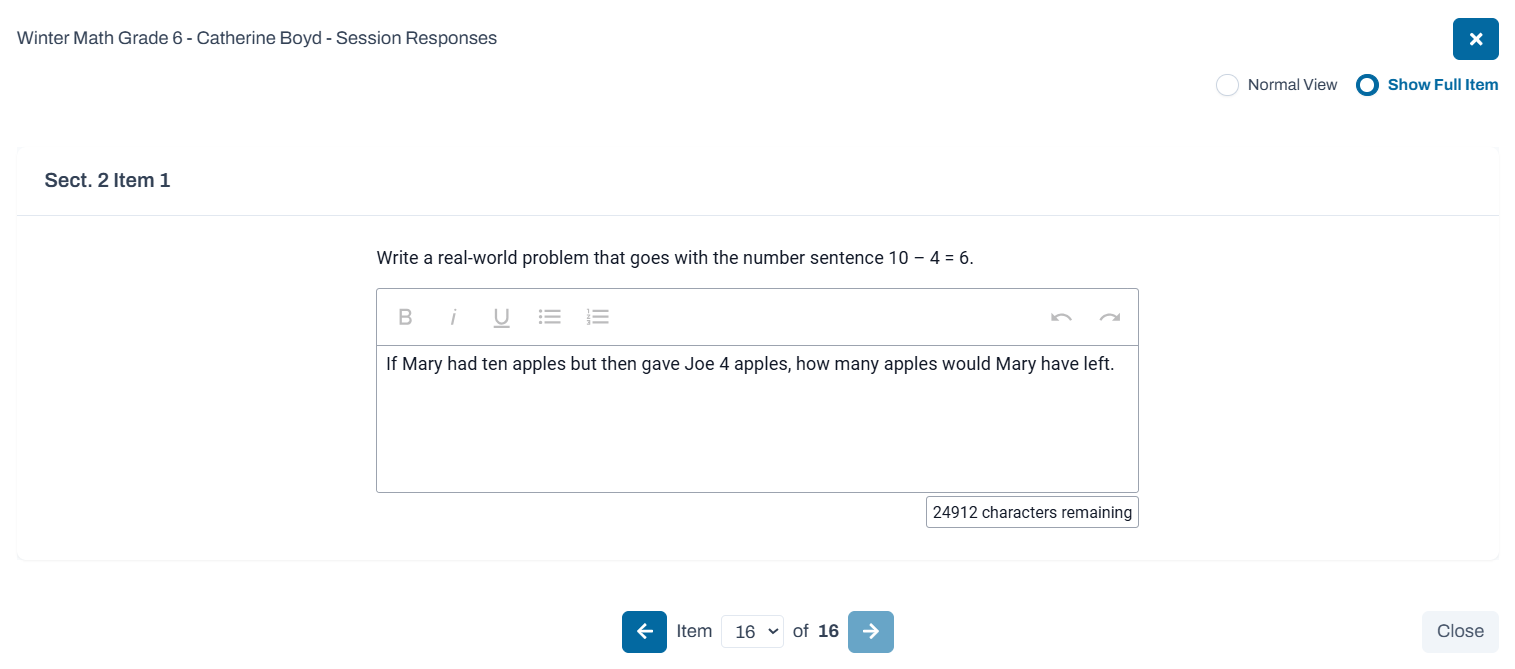
Available actions from the More menu may include:
Classic User Interface:
Updated User Interface:
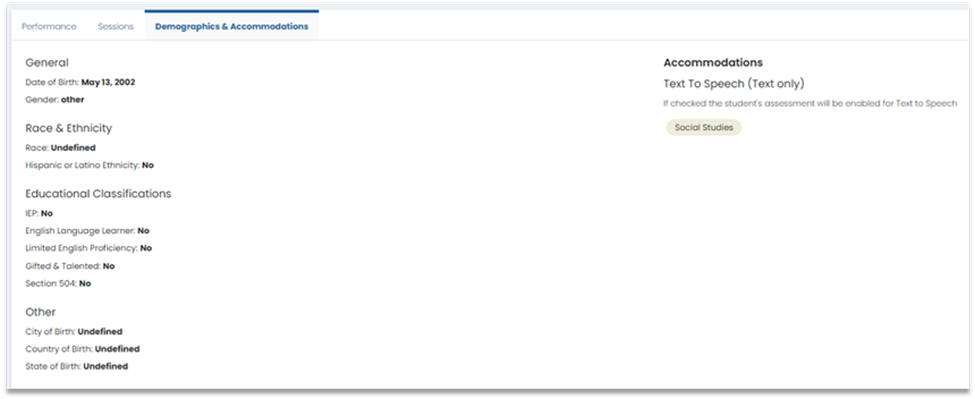
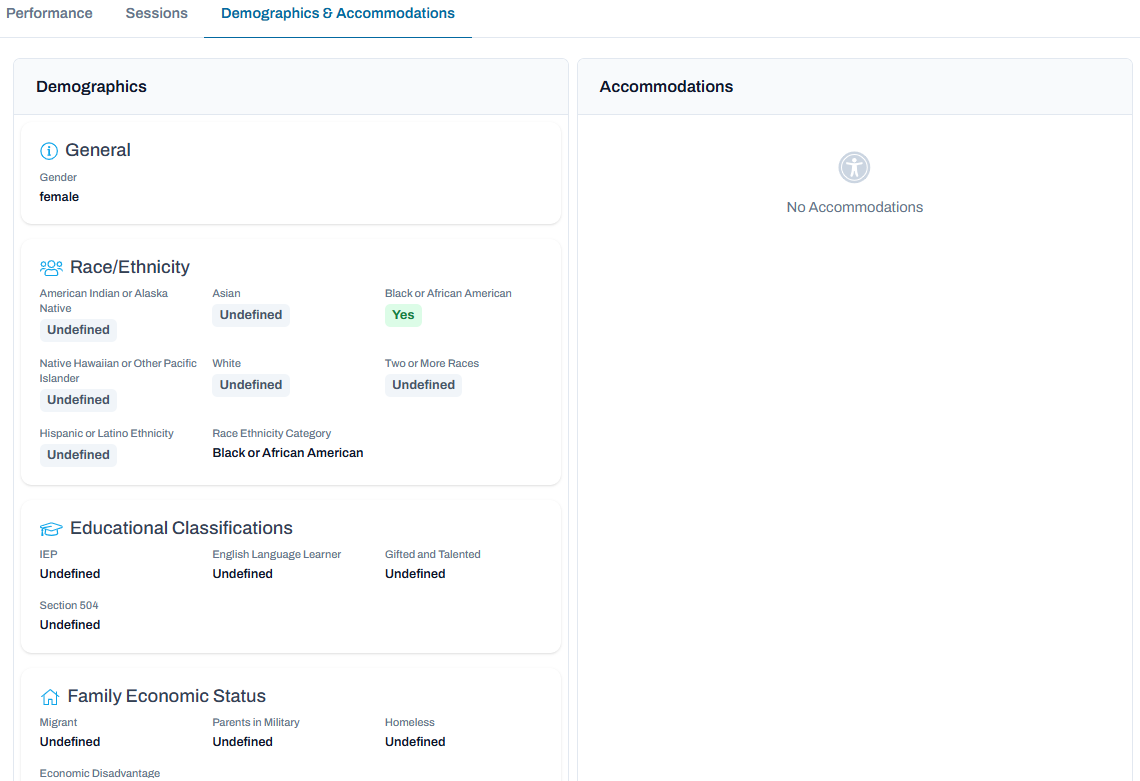
Student Dashboard: Demographics and Accommodation ViewWhat demographics and accommodations are visible is based on what data is shared with ADAM and the user rights granted to your role. Classic User Interface: Updated User Interface:
|
Note for Site Administrators: This Student Search feature is controlled with a user role permission in Rostering called ‘Student Dashboard’.
Classic User Interface:
Updated User Interface:
...