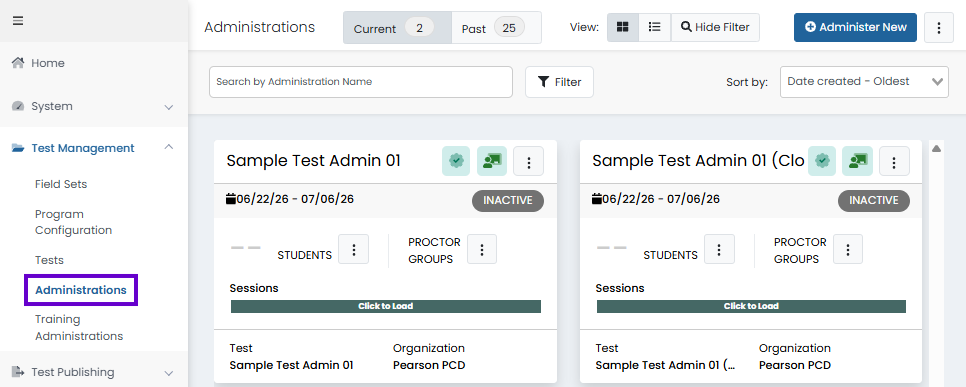
An administration card appears on the Administrations page for each scheduled administration. The admin card shows information about the administration and allows you to perform certain actions. Your role permissions determine whether you can see admin cards and what actions you can perform.

An administration card appears on the Administrations page for each scheduled administration. The admin card shows information about the administration and allows you to manage tasks such as managing proctor groups. Your role permissions determine whether you can see admin cards and what actions you can perform.

For step-by-step instructions on creating administrations in ADAM, see Create a Test Administration.

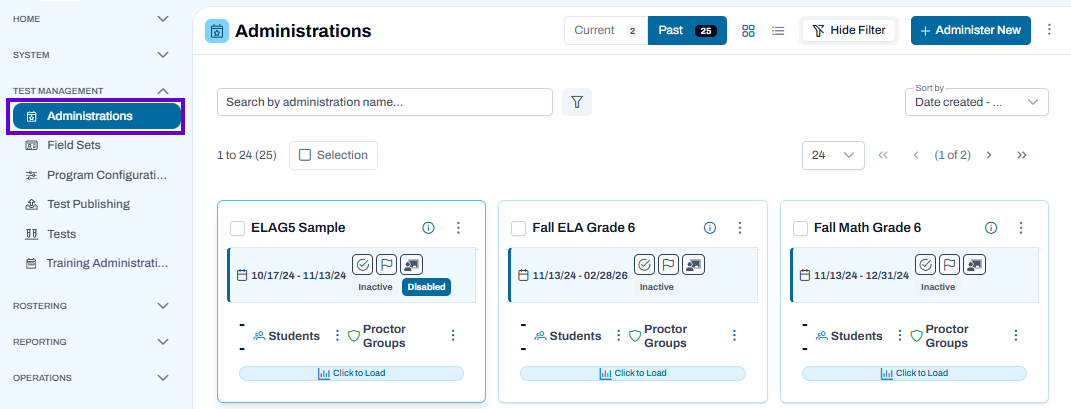
Navigation: To view administrations available to your role and organization, go to Test Management > Administrations.

Locate an Administration Card

Filter available on the Administration page

You can:

  • Choose Current or Past administrations.
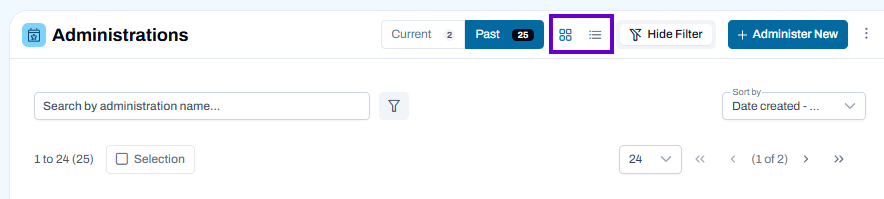
  • In the There is a toggle to change from the Card view to the compact List view.
  • In the Search box, find an administration by name.
  • Use the Sort by menu to sort by date created, start date or end date.
  • Toggle between Show Filter and Hide Filter. Use the Filter button to filter the administration list by program, test, student information or test code.
    Administrations filter options

Admin Card Overview

Available actions vary considerably based on user permissions and the type of assessment.

To enable faster page loading, the Sessions status bar is available on demand: select the green Sessions bar labeled 'Click to Load' in order to view session details.

 Two sample admin cards


From the Actions menu () in the top right corner of the Administration card, designated users can:

  • Scan New Students: Perform a scan to update the students in the administration to maintain an accurate roster. See the Refresh Students after Adjusting Classes or Adding New Students page. Scanning automatically happens every 30 minutes. To optimize site performance, rescan a student rather than the entire administration if applicable, and only if needed within the next 30 minutes. A yellow icon indicates a scan was initiated but is not yet complete.

  • Rebalance Administration: Rebalance spiral forms after the test is created. If changes occur to students or forms, this allows you to return to the desired percentage split. This is only recessary if there are multiple forms associated with the test.
  • History: View status of rescans for newly eligible students. The remining columns do not apply to the eligibility method for creating administration, which is what must customers use.
  • Disable: Stop the ability for students to start any new sessions in the administration. The Disabled status label will appear on the admin card.
  • Rescore Admin: Only reescore the administration after reading the instructions here. Do not use this feature with TestNav tests.
  • Submit Sessions: For students who have started their test, submit all unsubmitted sessions. Optionally exclude specific schools as needed to support later test windows, etc.
  • Edit: Edit the administration details, such as the administration name and test dates.
  • Delete: Delete a test that is Inactive. You cannot delete an Active test.
  • Print paper form: Print a paper version of the test. This link is available only if permissioned for your role and a PDF form is attached to the test form (there may be multiple PDFs to print for some tests). 
  • Start Pre-ID Order: Start a pre-ID order for selected students. After initiating the order, it will appear in Orders > Manage Orders.

In the Students menu (), perform the following actions: 

  • View: View the students assigned to the administration. See View Students in an Administration or Proctor Group.
  • Export: Export the list of students in the administration, including student and teacher information, the proctor group, the test code and form.
  • Print Cards: Open the student test card (or "ticket") page. From here, you can arrange and print the student cards. Each card contains the information, such as the Test Code, that the student needs to start the test. See Printing Rosters and Student Test Tickets.

In the Proctor Groups menu (), perform the following actions:

  • View: View the list of proctor groups. 
  • Export: Export the list proctors, including the Test Code and Proctor Password (if enabled).
  • Print Cards: Where enabled, open the Proctor Group Creation Login Card page. From here, you can display and print multiple copies. Each card contains the Test Code and Proctor Password. These should only be used if proctors will be creating groups 'on the fly' to generate their own code per testing room. If proctor groups are pre-created, do not use (the proctor codes will be on the roster that is printed with the test codes.) See also:  Proctoring a Test.


Student page showing View by Form Type selected

Test Management > Administrations > Proctor Groups > View > Students. Note option to filter by form type.

Alerts

The Alerts icon appears if there are issues that need to be resolved for the administration.

Alerts icon selected with history displayed

Eligibility Criteria Administration

The Eligibility Criteria Admin icon indicates that the administration is populated based on student eligibility criteria, rather than class-based criteria.

For more information, see Create an Administration.

eligibility criteria icon


Tiny Link: https://support.assessment.pearson.com/x/wADVBw