When choosing what type to use for an item, take into account its accessibility and the needs of testers. It is possible in ADAM to create accommodated versions of a test by creating an alternate form that uses, for example, only items supported by screen readers.
Accessibility by Item Type
*Instructions available for the student – see next section for details.
Item Instructions
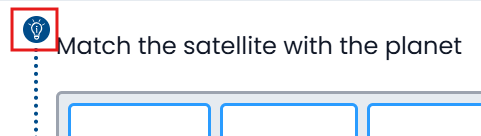
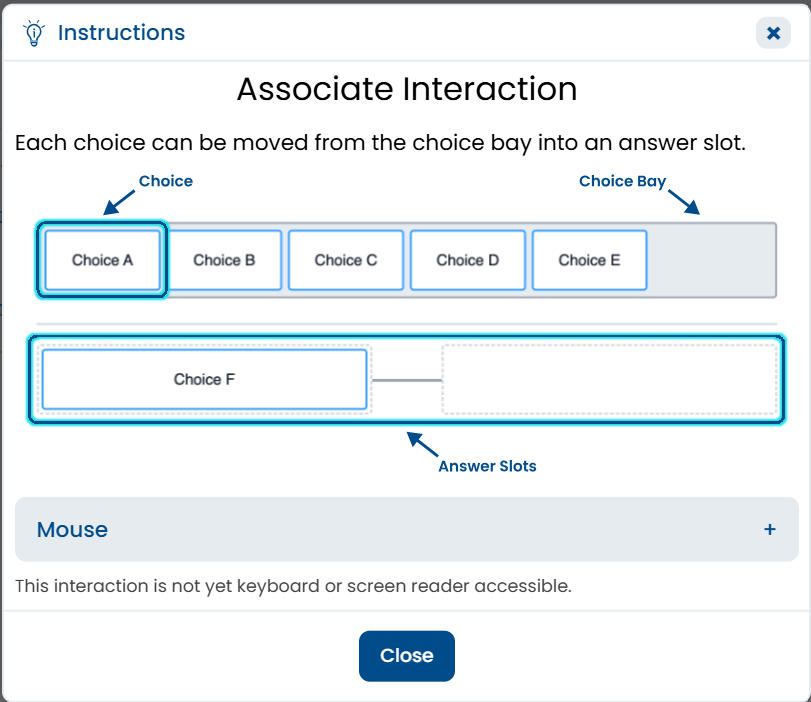
Some items provide a lightbulb icon students can click to learn more about how to interact with the item type as well as provide instructions for keyboard and screen reader, if applicable. All instructions are available for Spanish. This can be enabled/disabled in Form Settings.
Tiny Link: https://support.assessment.pearson.com/x/5YH9Cg